
A portable monitor is worth buying when its brightness, color gamut, HDR behavior, and refresh rate match your real usage and power setup. Use 300-400 nits for typical indoor work, target 90%+ DCI-P3 only for color-critical tasks, treat "HDR" as a feature to verify, and choose 120-144Hz only if you truly benefit from smoother motion.
Quick Buying Snapshot: Essential Specs at a Glance
- Brightness: 250-300 nits for dim rooms; 300-400 nits for most indoor use; 400-600 nits if you work near windows or on bright desks.
- Color: 100% sRGB is enough for office + web; 90%+ DCI-P3 is for video/photo work where wide gamut matters.
- "HDR": Look for real HDR control and measurable improvement; many portable panels accept HDR signal but don't deliver true HDR contrast.
- Refresh rate: 60Hz is fine for productivity; 120-144Hz is for gaming/fast motion work (จอภาพพกพา 144Hz) and costs battery/brightness.
- Resolution: Full HD is easiest to drive; จอภาพพกพา 4K makes sense mainly at 15.6-17" for sharp text and detailed media, but raises power and scaling demands.
- Connectivity/power: Prioritize USB‑C DP Alt Mode + USB‑C PD pass-through; plan for cables and charger wattage to avoid dimming and dropouts.
Brightness (nits): Real-world thresholds and when more matters
Who benefits most: people working in bright indoor environments, near windows, in cafés, or frequently sharing the screen (higher brightness helps maintain readability at angles).
- 250-300 nits: acceptable for dim rooms; can feel washed out under overhead lighting.
- 300-400 nits: safest target for everyday portable use; readable in most indoor settings.
- 400-600 nits: useful if you often fight glare and bright ambient light; may require external power to sustain brightness.
When not to chase more nits: if you mainly work at night, value battery runtime, or use the monitor as a secondary coding/document screen. Higher brightness often means higher power draw, more heat, and sometimes more aggressive auto-dimming when powered only via a laptop USB‑C port.
Color gamut, accuracy and calibration: sRGB vs DCI-P3 and what to expect
Before you pay extra for wide gamut, ensure you can feed the monitor a clean signal and you have a way to check it. Many portable monitors ship with "vivid" presets that look impressive but are inaccurate until corrected.
- Decide your target:
- Office/web/UI: aim for near-100% sRGB and stable white point.
- Video/photo (modern cameras/phones): consider 90%+ DCI-P3, but only if your workflow is color-managed.
- Access you may need: GPU control panel (Windows/macOS), ability to disable "dynamic contrast/HDR effect" modes, and permission to install an ICC profile.
- Useful tools (optional but practical):
- Colorimeter: for real calibration (best option if color matters).
- Test patterns: grayscale ramps, clipping patterns, and skin-tone references.
Expectation management: "DCI-P3 capable" does not guarantee accurate color. Wide gamut without proper mode or profile can oversaturate web content and make skin tones look unnatural.
HDR on portable monitors: true gains, common limitations, and test checks
Risks and limitations to watch (risk-aware):
- Marketing HDR: some panels only accept an HDR signal but can't produce meaningful HDR highlights due to limited peak brightness.
- Washed blacks: edge-lit IPS panels without local dimming can look gray in dark scenes.
- Power-related dimming: HDR modes may trigger brightness throttling when powered solely over USB‑C.
- OS/app mismatches: HDR on Windows can look wrong without calibration; some apps ignore HDR settings.
-
Confirm your HDR pipeline (device → cable → monitor)
Check that your laptop/phone/tablet can output HDR over the connection you'll actually use (USB‑C DP Alt Mode or HDMI). A monitor labeled จอภาพพกพา HDR is only useful if your source can deliver HDR metadata reliably.
- Prefer a known-good USB‑C cable rated for video, not "charging only".
- If using HDMI, confirm the monitor supports HDR on that HDMI input (not only USB‑C).
-
Test peak brightness behavior in HDR mode
Enable HDR, open a high‑contrast test clip, and watch whether small highlights actually get brighter or the whole image simply shifts tone. If HDR makes everything dimmer, the monitor may be tone-mapping poorly or power-limited.
- If the monitor has "HDR/Auto HDR" presets, compare them against a neutral standard mode.
- If brightness locks in HDR mode, that's common; verify it still stays readable in your room.
-
Check black level and shadow detail (the failure mode most buyers miss)
In a dark scene, look for two problems: crushed shadows (detail disappears) or lifted blacks (everything looks gray). Portable monitors often struggle here, so judge with content you know well.
-
Verify color behavior with and without HDR
Toggle HDR on/off and watch skin tones and neutral grays. If enabling HDR makes faces too red/orange or grays become tinted, the HDR mode may be locked to a wide gamut without proper mapping.
-
Validate power requirements to avoid "HDR that only works on a charger"
Repeat the HDR test while powered only from your laptop, then again with a USB‑C PD charger. If performance changes significantly, plan your setup around external power for consistent HDR.
Refresh rate and response time: gaming, motion work, and perceptible differences
- Confirm the max refresh rate is available on your chosen port: some monitors do 120/144Hz only via USB‑C (or only via HDMI).
- Verify your device can output the target refresh rate: many ultrabooks limit external refresh rate depending on GPU and resolution.
- Check for frame skipping: at the advertised Hz, motion should look consistently smooth (no periodic stutter).
- Look for overshoot/ghosting: enable the monitor's overdrive settings and pick the lowest setting that reduces blur without bright "inverse ghost" trails.
- Test variable refresh (if offered): VRR helps reduce tearing, but some portable monitors implement it inconsistently.
- Assess power/brightness impact: higher Hz often reduces max brightness or increases power draw-verify the mode you'll actually use.
- Match resolution to refresh: pushing 4K at high Hz is harder; for gaming, 1080p/1440p at 120-144Hz is usually more realistic.
Connectivity, power delivery and mechanical fit: ports, hubs, and battery trade-offs
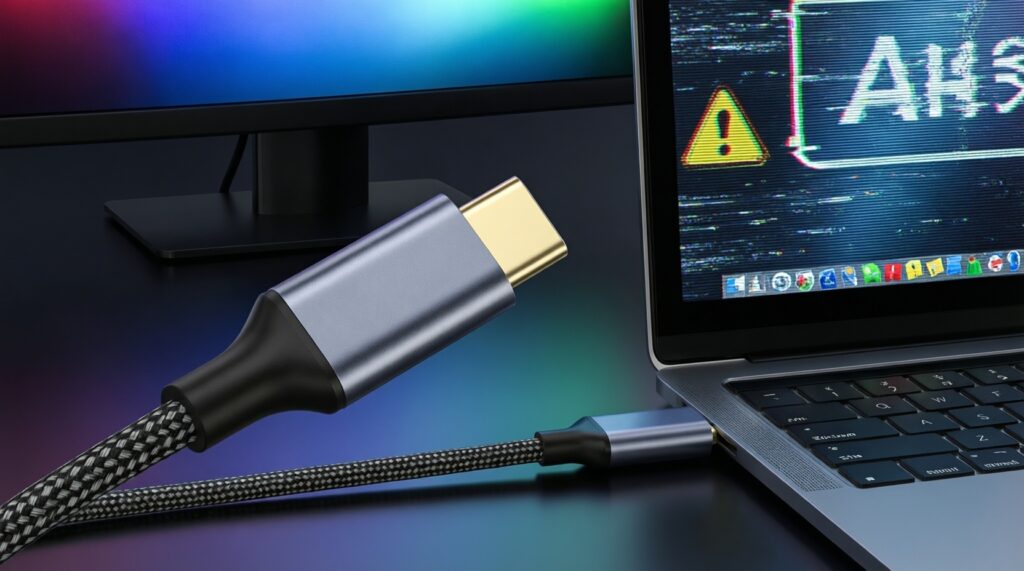
- Assuming any USB‑C works for video: you need USB‑C with DisplayPort Alt Mode; "USB‑C charging" alone is not enough.
- Buying thin/cheap cables: marginal cables cause flicker, dropouts, random disconnects, and reduced refresh rate.
- Ignoring USB‑C PD pass-through needs: without it, you may have to choose between charging the laptop or powering the monitor.
- Overloading a single laptop port: one USB‑C port may not provide enough power for stable brightness plus peripherals; symptoms include dimming and intermittent black screens.
- Expecting "built-in battery" to behave like a power bank: if present, it may prioritize the panel and not reliably power your host device.
- Forgetting orientation and stand limits: many covers wobble on soft surfaces; check if it supports portrait mode if you plan to code/read vertically.
- Mounting/fit mismatch: verify VESA holes (if needed), hinge stiffness, and edge clearance for right‑angle connectors.
- Audio/OSD quirks: some models route audio poorly or have awkward OSD buttons-small but daily-annoying issues.
Performance trade-offs: balancing brightness, color, refresh rate and portability
- Productivity-first (best battery and compatibility): 15.6" 1080p, 300-400 nits, 60Hz, near‑100% sRGB, USB‑C DP Alt Mode. Best when you care about stability and long sessions on laptop power.
- Creator-leaning (color before speed): 400-600 nits, 90%+ DCI‑P3, good uniformity, optional hardware calibration support. HDR can be a bonus, but only if your tests show real highlight/shadow improvement.
- Gaming-on-the-go (motion before pixels): 1080p/1440p, 120-144Hz (จอภาพพกพา 144Hz), reasonable response time, and a power plan (often needs a charger to stay bright at high Hz).
- High-detail text/media (resolution-first): จอภาพพกพา 4K if you want crisp fonts and detailed images; expect more scaling tweaks and higher power draw than 1080p.
If you're comparing ราคา จอภาพพกพา across stores, price gaps usually come from brightness class, wide-gamut panel choice, refresh-rate electronics, and included accessories (case/stand, cables, charger). For จอภาพพกพา ซื้อที่ไหน decisions, prioritize shops with clear return policies so you can verify brightness, HDR behavior, and port compatibility with your own device.
Common Buyer Questions and Short Answers
Is 300 nits enough for a portable monitor in Thailand?

For most indoor use, 300-400 nits is a safer range. If you often work near windows or in cafés, 400+ nits reduces the constant need to chase angles and fight reflections.
When does 90%+ DCI-P3 actually matter?
It matters when you do color-managed photo/video work and need saturated colors without clipping. For documents, coding, and web browsing, near‑100% sRGB is usually the more practical target.
What should I expect from จอภาพพกพา HDR in real use?
Expect mixed results: some models mainly change tone mapping rather than delivering true HDR contrast. Always test with known HDR content and check whether highlights get brighter without crushing shadows.
Is จอภาพพกพา 144Hz worth it if I don't game?
Mostly no. You'll pay in power draw and sometimes brightness limits; 60Hz is fine for productivity, while 120-144Hz is most noticeable in fast motion and games.
Is จอภาพพกพา 4K a good idea on 15.6 inches?
It can be great for crisp text and detailed media, but it increases GPU load and often requires OS scaling to avoid tiny UI. If you prioritize simplicity and battery life, 1080p is easier.
What's the most common compatibility mistake with USB‑C portable monitors?
Assuming any USB‑C port supports video output. You specifically need USB‑C with DisplayPort Alt Mode (or Thunderbolt/USB4 with DP output) and a proper video-capable cable.
How do I keep brightness stable when traveling?
Plan for external USB‑C PD power when you need high brightness, HDR, or high refresh rate. Laptop-only power is where many portable monitors dim or behave inconsistently.