
A productive portable-monitor setup usually comes down to four add-ons: a stable stand, the right USB‑C hub/dock, certified high-bandwidth cables, and a protective case. Choose based on your laptop's USB‑C capabilities (video + power), your monitor's input options, and how you travel, so the screen stays steady, powered, and reliably connected.
Essential hardware to pair with a portable monitor
- A rigid stand or adjustable arm that won't sag under your monitor's weight
- A USB‑C hub or dock that supports video output and enough Power Delivery pass-through
- Quality USB‑C and/or HDMI cables rated for the job (video bandwidth + charging)
- A compact power solution (USB‑C charger or PD power bank) for stable brightness and fewer dropouts
- A protective sleeve/case sized to your monitor with real edge/corner padding
Choosing the right portable monitor stand: stability, tilt and portability

Best for: frequent café/coworking use, dual-screen workflows, and anyone who wants eye-level alignment to reduce neck strain. If you're searching locally, you'll often see listings like "ขาตั้งจอพกพา ซื้อ" that bundle basic stands-verify rigidity and angle control before buying.
Skip or rethink a stand when: your monitor already has a solid kickstand that holds your preferred height, or you work on very small/unstable tables where clamps/arms can slip. In those cases, a non-slip pad plus a low-profile foldable stand is safer than a tall, top-heavy option.
- Stability: wide base, metal hinge, and anti-slip feet matter more than "lightweight."
- Tilt and height: prioritize repeatable angles; avoid hinges that drift after small taps.
- Portability: fold flat, no sharp edges, and doesn't press into the panel when packed.
USB‑C hubs and docking options for power, video and peripherals
Before you compare "USB-C hub สำหรับจอพกพา ราคา", confirm what your laptop's USB‑C port can actually do. Many issues come from assuming every USB‑C port outputs video or supports enough power.
What you need to check (and have on hand)
- Laptop port capability: USB‑C with DisplayPort Alt Mode (or Thunderbolt/USB4) if you want USB‑C video.
- Monitor input: USB‑C (single-cable possible) vs HDMI + separate power.
- Power plan: a USB‑C PD charger with enough headroom for laptop + monitor, or a PD power bank for mobile use.
- Hub/dock spec: a model that explicitly lists video output (HDMI/DP or USB‑C video) plus PD pass-through.
- Peripheral needs: keyboard/mouse receiver, Ethernet, SD reader, or additional USB-A ports.
- Fail-safe tip: if your setup is unstable, separate responsibilities: one port/cable for video, another for power, instead of forcing a single-cable arrangement.
- Heat tip: compact hubs can run hot; avoid covering them and don't trap them under a laptop sleeve while in use.
Selecting cables: bandwidth, power delivery and certification to trust
Most "portable monitor problems" are cable problems: wrong bandwidth, weak connectors, or cables that charge but can't carry video. When you shop for "สาย USB-C คุณภาพดี สำหรับจอพกพา", treat the cable as a spec'd component, not an accessory.
-
Identify the video path you're using
Decide whether the monitor will receive video via USB‑C (DP Alt Mode) or via HDMI/DisplayPort. This determines the exact cable type you must buy and prevents "it charges but no signal" confusion.
- USB‑C video requires a full-featured USB‑C cable (not charge-only).
- HDMI setups need an HDMI cable plus a separate USB‑C power cable/adapter.
-
Match cable capability to resolution/refresh and stability goals
For higher resolutions/refresh rates, pick cables explicitly rated for higher data throughput. If a listing doesn't state specs, skip it-unlabeled cables are the most common source of flicker and dropouts.
- Prefer short-to-medium cable lengths for travel to reduce strain and signal issues.
- Avoid tight bends at the connector; use a gentle loop to protect the port.
-
Verify Power Delivery rating and connector quality
If the monitor is powered over USB‑C, the cable must handle the required power reliably. Look for PD support and solid strain relief; loose connectors cause intermittent black screens when you move the laptop.
- Choose reputable brands with clear PD and data ratings.
- Replace any cable that gets unusually hot, wobbles in the port, or causes random reconnect sounds.
-
Confirm certification/labeling and avoid "mystery" adapters
Certification and clear labeling (data rate, PD support) reduce guesswork. Cheap USB‑C adapters can silently drop features like video output or limit charging, even if they physically fit.
-
Do a controlled test before daily use
Test with one change at a time: first cable, then hub, then power. Lock your monitor settings, wiggle-test gently, and confirm it stays connected through normal desk movement.
Fast mode (3-5 steps)
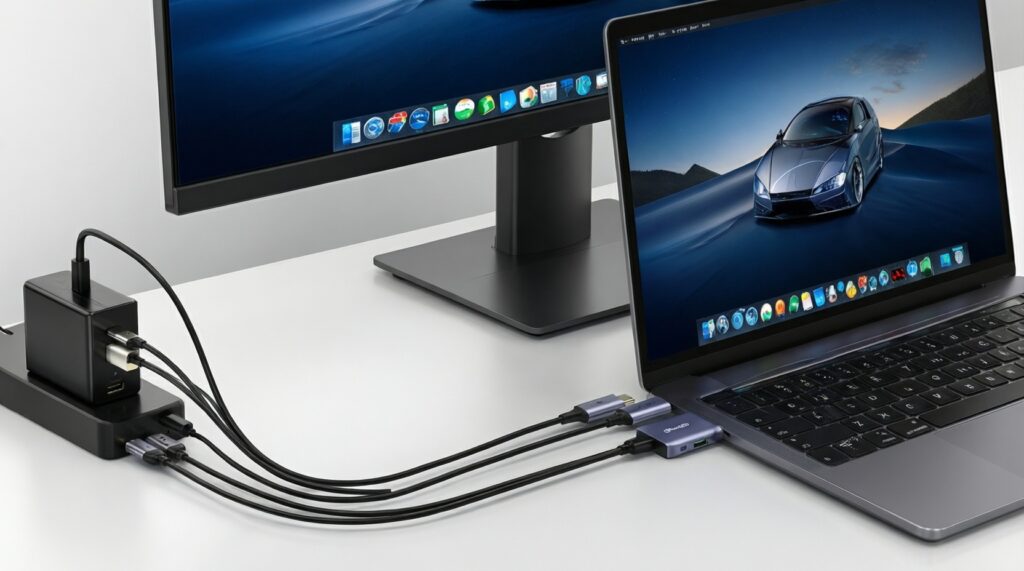
- Pick the connection: USB‑C video if supported; otherwise HDMI for video + USB‑C for power.
- Use one known-good cable first: full-featured USB‑C or a quality HDMI cable-no adapters initially.
- Add the hub last: only after direct connection is stable.
- Stabilize power: plug into a PD charger (or PD power bank) to stop brightness dips and disconnects.
Audio, input devices and power banks that expand on-the-go workflows
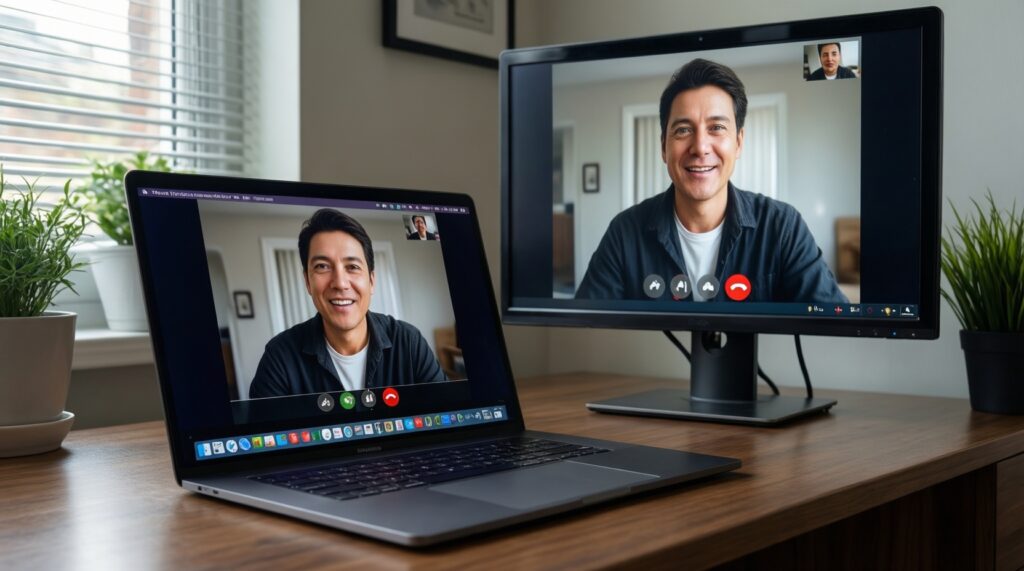
Use this checklist to confirm the setup is "work-ready" before you rely on it outside home.
- Monitor holds position on the stand without slowly drooping or wobbling when typing.
- Video stays stable when you move the laptop lid, adjust the stand, or tap the table lightly.
- Brightness remains consistent (no dimming) when the laptop CPU load increases.
- USB devices (mouse/keyboard/webcam) stay connected through the hub without random reconnects.
- Audio route is intentional (laptop vs monitor speakers vs Bluetooth) and doesn't switch mid-call.
- Power bank (if used) supports USB‑C PD output and doesn't shut off at low load.
- Cable routing avoids pulling on the monitor port; connectors are not under tension.
- Hot hub/dock has ventilation and is not touching fabric or paper.
Protective cases and covers: fit, padding and travel convenience
When you search "เคสจอพกพา กันกระแทก ซื้อ", watch for these common mistakes that lead to panel pressure, scratched screens, and bent ports.
- Buying a sleeve that's "almost" the right size, causing corner pressure on the display.
- No rigid edge protection: thin neoprene helps scratches but not drops or bag impacts.
- Storing cables/chargers in the same compartment so plugs press into the panel.
- Choosing a case that bends easily, letting the monitor flex inside a backpack.
- Ignoring zipper placement: zippers that run along the screen edge can rub or snag.
- Skipping a microfiber layer, leading to fine abrasion marks over time.
- Forgetting heat/moisture: packing a warm hub/power bank against the monitor.
- Relying on a magnetic cover that doesn't fully protect corners during transit.
Setup checklist and a compact gear comparison table
If you're deciding which "อุปกรณ์เสริมจอพกพา แนะนำ" package to build, pick one of these patterns based on your risk tolerance and mobility.
Practical alternatives (when each makes sense)
- Single-cable USB‑C (cleanest): use when your laptop supports USB‑C video and you have a proven full-featured cable and sufficient PD power.
- HDMI + separate USB‑C power (most compatible): use when USB‑C video is unclear or unreliable; easier to troubleshoot quickly.
- Hub-centric travel desk (most expandable): use when you need multiple peripherals/Ethernet; prioritize a hub that stays stable under load.
- Power-bank-first mobile kit (outlet-free): use for short sessions away from sockets; ensure PD output is stable and your monitor doesn't require proprietary power behavior.
| Option | Best for | Must-have specs to check | Typical failure mode | Fast fix |
|---|---|---|---|---|
| USB‑C single-cable | Minimal setup, frequent packing | USB‑C video support (DP Alt Mode/USB4), full-featured cable, adequate PD | Charging works but no video / flicker | Try HDMI for video, keep USB‑C only for power |
| HDMI + USB‑C power | Maximum compatibility | Monitor HDMI input, stable power source, decent HDMI cable | Extra cables clutter, port strain | Shorter cables + simple cable routing/clip |
| USB‑C hub with PD pass-through | Peripherals + monitor from one hub | Explicit video output support, PD pass-through, enough ports | Random disconnects when hub heats up | Ventilate hub; reduce peripherals; separate power |
| PD power bank + portable monitor | Work without outlets | USB‑C PD output compatibility, stable low-load behavior | Power bank shuts off / brightness dips | Use a wall PD charger; or add a small load via hub if appropriate |
Common setup pitfalls and quick fixes
My portable monitor powers on but shows "No signal" over USB‑C. Why?
Your USB‑C port or cable may not support video (DP Alt Mode). Test with HDMI (if available) or try a known full-featured USB‑C cable.
Why does the monitor flicker when I connect through a hub?
The hub may be overheating or power is marginal. Connect the monitor directly to the laptop to confirm stability, then add the hub back with a PD charger attached.
Why does the monitor disconnect when I adjust the stand or move the table?
This is usually port strain or a loose connector. Shorten the cable, reduce bending near the connector, and route the cable so it doesn't pull on the monitor.
My laptop charges slowly when the monitor is connected.
PD pass-through might be limited by the hub/charger/cable. Use a higher-capacity PD charger and a PD-rated cable, or power the monitor separately.
Audio keeps switching between laptop and monitor during calls.
Set the preferred output device in your OS and disable unused outputs if needed. Avoid reconnecting the monitor mid-call to prevent device renegotiation.
The screen got scratched inside the sleeve-how do I prevent it?
Keep accessories out of the monitor compartment and add a microfiber layer. Choose a case with padding that prevents the panel from rubbing against zippers or seams.