
For a 13-16" portable monitor on Mac, prioritize a single-cable USB‑C setup, predictable macOS scaling, and verified color mode behavior (sRGB vs wide gamut). Budget-first, the best "overall" choice is usually a 15.6" 1080p IPS with true USB‑C DP Alt Mode, while creators should move to 4K or DCI‑P3-capable panels only if their apps and workflow really need it.
Technical executive summary for Mac users
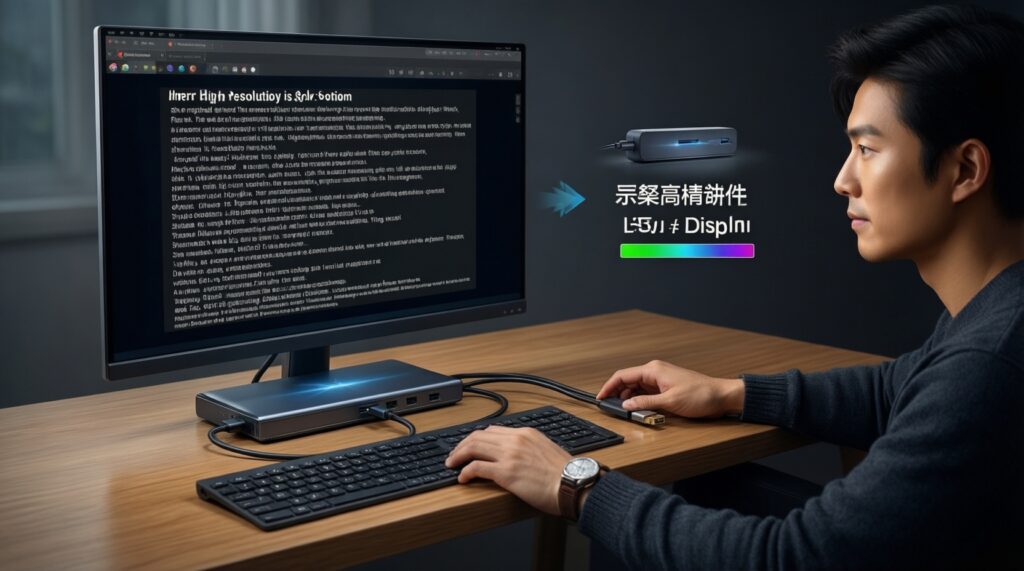
- For reliability, require USB‑C DisplayPort Alt Mode (not charge-only USB‑C) plus a second port for pass-through power when possible.
- For text clarity, 4K at 15.6" looks sharp on macOS but may force scaling; 1080p is cheaper yet noticeably softer at typical desk distance.
- For color work, prefer monitors with a real sRGB clamp mode or consistent ICC workflow; "wide gamut" without clamping can oversaturate non-color-managed apps.
- For responsiveness, 60 Hz is fine for editing/UI; 120-144 Hz matters mostly for cursor feel and fast scrolling-verify low lag rather than only refresh rate.
- Avoid "HDR" claims on budget portable panels unless you can confirm real brightness control and stable tone mapping in macOS.
- In Thailand, "จอพกพา 13-16 นิ้ว สำหรับ Mac ซื้อที่ไหน" usually comes down to returns/warranty: buy where you can easily exchange for dead pixels, flicker, or USB‑C handshake issues.
Best budget 13-16" portable monitors for Mac: ranked
- Budget baseline (recommended starting point): 15.6" IPS, 1920×1080, USB‑C DP Alt Mode + mini‑HDMI
- Budget+ sharpness: 15.6" IPS, 3840×2160 (4K), USB‑C DP Alt Mode
- Budget+ smoothness: 15.6" IPS, 1920×1080, 120-144 Hz, USB‑C DP Alt Mode
- Premium color-first: 14-16" OLED or wide-gamut IPS (DCI‑P3 oriented), USB‑C DP Alt Mode
Selection criteria (use these before picking any brand/model)
- USB‑C video support: must state DP Alt Mode / USB‑C video input; otherwise you may get power-only behavior.
- Power budget: check whether it can run from MacBook USB‑C alone; if not, plan for external power or pass-through charging.
- Panel type: IPS for consistent viewing; OLED for contrast but higher risk of ABL behavior and potential burn-in considerations.
- Resolution vs size: 1080p (cheaper, softer text) vs 1440p/4K (sharper, scaling more likely).
- Color mode control: presence of an sRGB mode/clamp and whether it stays enabled across sleep/wake.
- Uniformity/flicker: avoid aggressive PWM dimming if you are sensitive; watch for brightness flicker at low levels.
- OSD usability: physical buttons/joystick matters because macOS won't expose monitor color controls.
- Connectivity fallbacks: mini‑HDMI can save you if USB‑C negotiation fails (dock/cable incompatibility).
- Return policy: portable panels vary; easy exchange is part of the "spec" in practice.
Color accuracy deep dive: sRGB, DCI‑P3 and how to read measurements
On macOS, color-managed apps (most pro photo/video tools and Safari) can use ICC profiles, but many UI elements and some apps won't. That's why a monitor with a trustworthy sRGB clamp can be more predictable than a "wide gamut" panel that always runs un-clamped. If you specifically need wide gamut, look for credible claims around DCI‑P3 and stable color modes-this is the core of แนะนำจอพกพาสำหรับ MacBook 15.6 นิ้ว สีตรง DCI-P3 in real use.
| Option | Who it fits | Pros | Cons | When to choose |
|---|---|---|---|---|
| IPS 1080p with sRGB mode (budget baseline) | General MacBook users, office, coding, light editing | Lowest risk of oversaturation; usually easiest scaling; best value | Text less crisp at 15.6"; quality varies by unit | If you want a dependable จอพกพา USB-C สำหรับ MacBook sRGB 100% style experience (predictable color over flashy gamut) |
| IPS 4K (often wide gamut-ish, sometimes no clamp) | Text-heavy work, spreadsheets, detailed UI layouts | Sharper text; more workspace with scaling options | May require scaling; battery draw can be higher; can look oversaturated without proper mode | If your main question is จอพกพา 4K สำหรับ MacBook ราคา and you can accept scaling setup and potential color-mode compromises |
| Wide-gamut IPS (DCI‑P3-oriented) | Creators who need wider color volume for specific deliverables | Better for P3-targeted media when managed correctly | Non-managed apps can look too saturated; clamp quality varies | If you regularly deliver P3 content and will profile the monitor (or confirm a reliable P3/sRGB switch) |
| OLED portable (premium) | Video, contrast-critical preview, dark UI workflows | Excellent contrast; perceived depth; fast pixel response | Brightness behavior can change with content; may not be ideal for static UI all day | If you value contrast and response more than uniform brightness and long static sessions |
| Gaming-leaning IPS 120-144 Hz | Fast UI work, motion-heavy tasks, casual gaming on Mac | Smoother scrolling; better cursor feel | Refresh rate doesn't guarantee low lag; may trade color stability for speed | If you're explicitly searching จอพกพา 144Hz สำหรับ MacBook ความหน่วงต่ำ and will verify real responsiveness |
How to interpret specs without a lab report
- sRGB 100% vs "Wide color": sRGB coverage alone doesn't prove accuracy; you still need a stable mode that doesn't shift after sleep/wake.
- DCI‑P3 claims: treat as "capability" until you confirm a usable P3 mode or can profile it; otherwise you may just get vivid-but-wrong colors.
- 8-bit vs 10-bit: portable monitors frequently rely on 8-bit + FRC; on Mac it can still be fine, but don't assume true 10-bit pipeline end-to-end.
Resolution, panel type and image quality: Retina parity and practical trade‑offs
- If you code or read text all day, choose 4K at 15.6" and set a comfortable macOS scaling; budget option: 4K IPS, premium option: higher-end 4K IPS with better uniformity.
- If you want the least setup friction, choose 1080p IPS at 15.6" and run it at native resolution; budget option: 1080p IPS with good OSD, premium option: a better-built 1080p IPS with sturdier stand and cleaner USB‑C behavior.
- If you edit photos for web (sRGB deliverables), pick a monitor with a reliable sRGB clamp mode; budget option: IPS with sRGB mode, premium option: wide-gamut display that also has a proven sRGB clamp.
- If you deliver P3/HDR-targeted content, prioritize wide-gamut behavior you can control; budget option: wide-gamut IPS only if it offers stable modes, premium option: OLED or higher-grade wide-gamut IPS plus calibration.
- If you travel and work from cafés, avoid panels that become unstable at low brightness; budget option: IPS with minimal flicker reports, premium option: brighter, better-coated panel (matte/glare handled) with more consistent dimming.
Latency and responsiveness: benchmarks for photo, video and UI work
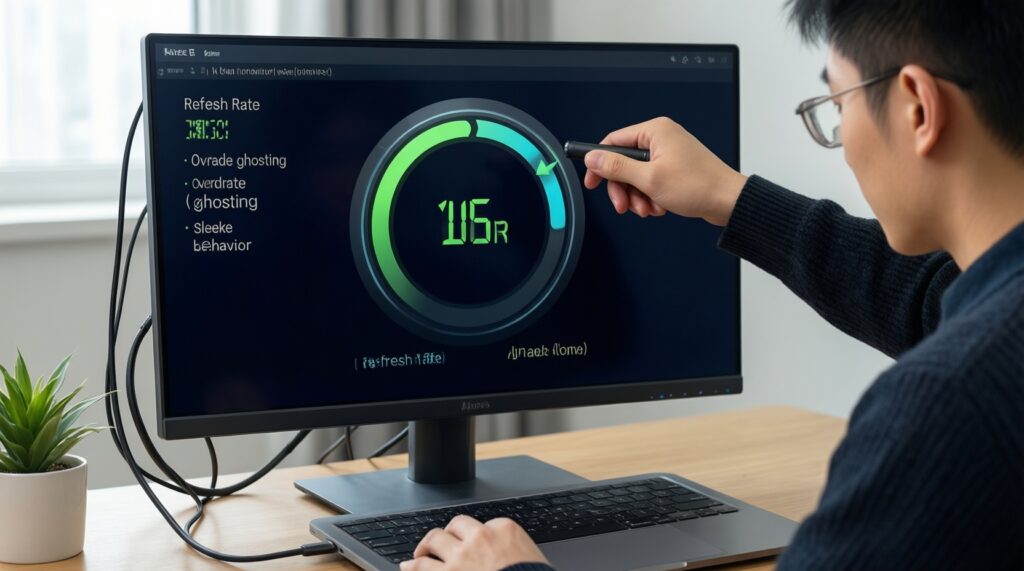
- Pick your target: 60 Hz for editing and general UI; 120-144 Hz only if you notice motion clarity and cursor lag.
- Demand a usable overdrive setting: if overdrive causes visible ghosting or inverse ghosting, treat it as a fail.
- Check sleep/wake behavior: wake the MacBook, unlock, and see whether the monitor reconnects instantly without black-screen delays.
- Validate USB‑C path: test with the exact cable length you'll use; many "random lag" complaints are link-quality problems.
- Confirm scaling doesn't stutter: on 4K models, try your intended scaled mode and scroll a long webpage or timeline.
- Use the right input: if USB‑C feels inconsistent, test mini‑HDMI to isolate whether the lag is USB‑C negotiation, not the panel.
- Don't equate refresh rate to low latency: a 144 Hz label can still feel sluggish if processing is heavy; prioritize perceived response in your own workflow.
Ports, power and macOS behaviour: USB‑C, Thunderbolt, HDR and scaling
- Confusing USB‑C roles: some portable monitors have one USB‑C for power and a different USB‑C for video-mixing them up looks like "dead monitor".
- No DP Alt Mode on the cable: charge-only or low-quality USB‑C cables cause intermittent black screens; use a known-good full-feature USB‑C cable.
- Dock compatibility assumptions: not every hub outputs USB‑C video; many only provide HDMI. Plan the signal chain explicitly.
- macOS scaling surprises: 4K at 15.6" often pushes you into scaled modes; test whether your GPU/load and the monitor firmware handle it smoothly.
- HDR toggles that harm SDR work: enabling HDR in macOS can shift tone mapping and brightness; keep HDR off unless you have a clear reason.
- Power pass-through limitations: pass-through charging may not sustain full MacBook load; if brightness drops under load, you're power-limited.
- Audio and USB peripherals: "monitor has USB" doesn't mean it's a hub for the Mac; verify whether it exposes USB data over the same USB‑C link.
- Clamshell mode instability: some portable monitors dislike lid-closed operation without external power; test before relying on it.
Price vs performance matrix: buyer's guide with recommended thresholds
For most Mac users trying to maximize value, the best fit is typically a 15.6" 1080p IPS portable monitor with confirmed USB‑C DP Alt Mode and a stable sRGB mode; it minimizes macOS quirks and oversaturation risk. If you're optimizing for text and workspace, step up to a 15.6" 4K IPS and accept scaling setup. If you're optimizing for motion feel, pick a 120-144 Hz model only after confirming low-lag behavior in your own chain (cable/dock/input).
Typical user issues and quick remedies
My MacBook charges the monitor but there's no image-why?
You're likely on a USB‑C port/cable that carries power but not DP Alt Mode video. Switch to the monitor's USB‑C video input (if separate) and use a full-feature USB‑C cable; otherwise use HDMI as a diagnostic fallback.
Why do colors look too saturated compared to my MacBook display?
You're probably running a wide-gamut mode without an sRGB clamp. Enable the monitor's sRGB mode (if present) and set a correct ICC profile in macOS for color-managed apps.
Why does 4K look tiny or blurry after scaling?
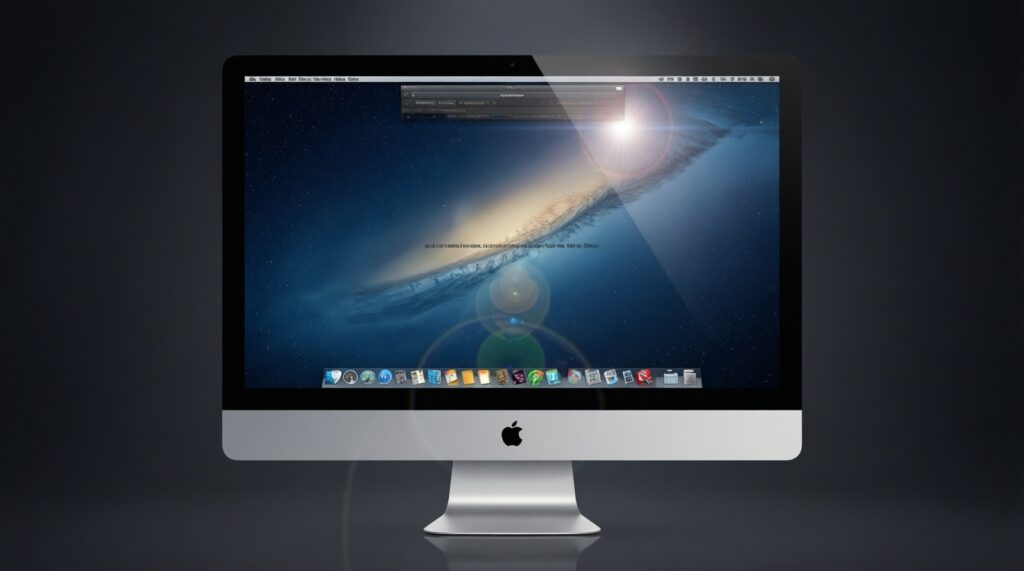
This is macOS scaling behavior. Try a different scaled resolution and disable any "sharpness" enhancements in the monitor OSD that can create halos on text.
Why does the monitor keep disconnecting after sleep?
Swap the USB‑C cable first; link quality is a frequent cause. If it persists, test via HDMI to isolate whether it's USB‑C negotiation or the monitor firmware.
Why does my 144 Hz portable monitor not feel responsive?
Refresh rate alone doesn't guarantee low latency. Check whether the monitor is actually running at the higher refresh rate in macOS, then adjust overdrive/response settings and avoid hubs that add negotiation delays.
Where should I buy in Thailand to reduce risk?
If your main concern is "จอพกพา 13-16 นิ้ว สำหรับ Mac ซื้อที่ไหน", prioritize sellers with easy exchange/return terms for dead pixels, flicker, and USB‑C handshake problems-those are common real-world failure modes for portable panels.