
If your main work is documents and meetings, a non-touch portable monitor usually gives better value: lower cost, simpler setup, and fewer glare/fingerprint issues. Choose touchscreen when you truly need direct on-screen control for annotation, signing, or timeline scrubbing. For editing, prioritize panel quality and color settings over touch features.
Quick Verdicts for Budget-Minded Buyers
- For the same budget, a non-touch model typically buys you a better panel (brightness, coating, stability) than touch.
- Touch is worth paying for only if you will annotate, sketch, sign PDFs, or use touch-first workflows weekly.
- For travel and cafés in Thailand, matte non-touch screens stay readable longer; glossy touch screens show fingerprints and reflections faster.
- For online meetings, a stable stand + reliable USB-C video matters more than touch; treat built-in speakers/webcams as "nice-to-have."
- If you're searching "จอพกพา ทัชสกรีน ราคา", compare total cost: touchscreen + pen + stand + cables often changes the value equation.
Touchscreen vs Non-Touchscreen: Core Functional Differences
Start by matching features to tasks. Touch adds interaction options, but also cost, power draw, and more variables (drivers, cables, glossy surfaces). Use the criteria below to decide what actually impacts your day-to-day workflow.
- Main interaction style: keyboard/mouse vs direct touch/pen for notes, markups, and quick navigation.
- Surface and reflections: many touch units are glossier; non-touch is more often matte and easier under office lighting.
- Fingerprints and cleaning: touch panels need frequent wiping; consider how often you work in public spaces.
- Power and heat: touch can increase power draw; matters when you rely on laptop battery.
- OS/app support: Windows tends to benefit most from touch; macOS often treats touch as basic input with fewer "touch-first" flows.
- Pen compatibility: confirm whether it supports active pen vs passive capacitive; active pens are better for precision annotation.
- Latency and palm rejection: relevant for drawing/signing; less important for spreadsheets and email.
- Weight/stand stability: touch use pushes the screen physically; weak stands wobble and become annoying fast.
Performance for Document Workflows: Typing, Scrolling, Annotation
For document-heavy work, non-touch wins on cost-per-feature and comfort. Touch becomes compelling when you actively mark up PDFs, whiteboard in meetings, or want tablet-like navigation beside your laptop. This is the most practical way to compare options when you "ซื้อจอพกพา สำหรับโน้ตบุ๊ก".
| Option | Best for | Pros | Cons | Choose when |
|---|---|---|---|---|
| Non-touch, single USB-C (DP Alt Mode) portable monitor | General office, spreadsheets, email, dual-screen productivity | Best value; usually lighter; fewer driver issues; easier cable management | Needs laptop/device that supports USB-C video; no direct annotation | You want the best "จอพกพา แบบไม่ทัช ราคา" value and simple daily setup |
| Non-touch, HDMI + USB power | Older laptops, consoles, mixed device setups | Broad compatibility; predictable connection behavior | More cables; may need a power adapter/power bank | Your laptop lacks USB-C video, or you switch between many sources |
| Touchscreen (10-point touch), USB-C single cable | PDF markup, quick UI navigation, occasional whiteboarding | Fast annotation; intuitive scrolling/zooming; good for hybrid meetings | Often pricier; glossy reflections; stand stability becomes critical | You repeatedly annotate documents and want direct interaction more than panel upgrades |
| Touchscreen + active pen support | Frequent signing, detailed markup, diagramming | Better precision than finger touch; improved control for notes | Pen compatibility varies; extra cost; may require calibration | You need consistent handwriting quality and can justify the accessory ecosystem |
| Portable monitor + separate tablet (as second screen/control surface) | Users who already own a tablet; mixed creative + office | Often more flexible; tablet excels at pen input while monitor stays matte/productive | Two-device workflow; extra charging and apps; more to carry | You want touch/pen benefits without paying the touchscreen premium on the monitor itself |
| Premium non-touch with better panel tuning (color modes, uniformity focus) | Long reading sessions, cleaner text, better consistency | Comfort and panel quality upgrades; fewer compromises than "touch-first" builds | Costs more than entry non-touch; still no direct annotation | Your bottleneck is viewing comfort and clarity, not interaction method |
Video Editing and Color Accuracy on Portable Displays
For editing, touch is rarely the deciding factor; panel behavior, calibration options, and a stable signal path matter more. Use "if..., then..." rules to avoid overspending on features that don't improve your output.
- If you mostly cut talking-head videos and do basic color adjustments, then a good-value non-touch panel plus consistent brightness control is the better spend than touch.
- If you scrub timelines and trim clips with a mouse/keyboard, then touch adds little; prioritize a stable USB-C/HDMI connection and a panel that doesn't flicker at low brightness.
- If you do frequent on-the-go rough cuts and want quick zoom/scroll gestures, then touchscreen can speed navigation, but only if the stand is firm and the panel coating won't distract you.
- If you need reliable color decisions, then choose the better panel tier (often found in premium non-touch models) and treat touch as optional, not a "quality" signal.
- Budget-first emphasis: if your budget is tight, then skip touch and allocate money to a sturdier stand/cover and the most consistent panel you can find.
- Premium emphasis: if you can pay more, then consider either (a) premium non-touch for panel consistency, or (b) touchscreen + active pen only when your editing workflow genuinely benefits from direct manipulation.
Video Calls and Meetings: Convenience, Microphone and Camera Considerations
For meetings, reliability beats novelty. Use this quick selection algorithm when you're looking for "จอพกพา สำหรับประชุมออนไลน์ รุ่นแนะนำ".
- Confirm your laptop supports USB-C video (DP Alt Mode); if not, plan for HDMI + USB power to avoid last-minute meeting failures.
- Choose a stand/cover that holds the monitor at eye level; wobble is worse than a smaller screen.
- Prefer matte or anti-glare surfaces if you take calls under office lights; glossy touch panels can reflect faces and windows.
- Assume built-in speakers are backup-only; plan to use laptop audio, a headset, or a small speaker for consistent clarity.
- Do not rely on a portable monitor webcam unless you've tested it with your conferencing app; many users still prefer the laptop camera angle.
- If you share screens often, prioritize stable refresh/connection (no random disconnects) over touch features.
Battery, Connectivity and Port Selection: Real-world Compatibility
Most buyer regret comes from compatibility and power assumptions, not from screen size. Avoid these common mistakes before deciding "จอพกพา ทัชสกรีน ยี่ห้อไหนดี" or any specific lineup.
- Assuming every USB-C port supports video output; many ports are data/charging only.
- Buying a "single-cable" monitor, then discovering your laptop needs HDMI plus separate power anyway.
- Overlooking cable quality/length; weak USB-C cables can cause flicker, dropouts, or reduced brightness.
- Ignoring power budget: running the monitor from the laptop can drain battery quickly; check whether the monitor supports pass-through power.
- Choosing a touchscreen without confirming whether you need drivers (especially on managed work laptops).
- Underestimating stand stability; touch use amplifies wobble and makes the screen feel cheaper than it is.
- Forgetting travel ergonomics: protective cover quality and corner protection matter when commuting.
- Expecting phone/tablet support by default; some mobile devices require specific modes/cables for external displays.
Cost vs Value: Best Picks by Budget and Use Case
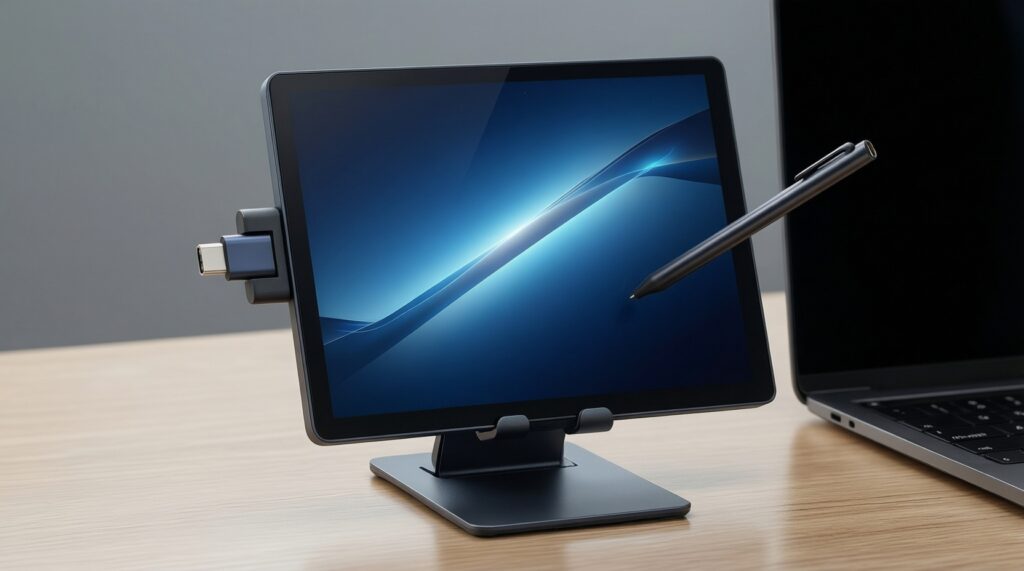
Best value for most people is a non-touch USB-C portable monitor with a stable stand; best "workflow boost" is a touchscreen (ideally with active pen) only when annotation is central; best editing-oriented spend is typically a higher-quality non-touch panel where your money goes to viewing comfort rather than touch hardware-especially when comparing "จอพกพา ทัชสกรีน ราคา" against a better-panel alternative.
One-line picks: Student: choose a non-touch model and put savings into a better stand/cables. Remote worker: prioritize connection reliability and anti-glare over touch. Content creator: prioritize panel consistency first; add touch/pen only if it directly speeds your creative workflow.
Common Buyer Concerns and Short Answers
Will touchscreen make me faster in Excel, docs, and email?
Usually no; keyboard shortcuts and a mouse/trackpad remain faster. Touch helps mainly for quick scrolling/zooming and occasional annotation.
Is a touchscreen portable monitor harder to set up?
It can be, especially if it needs drivers or if your laptop blocks installations. Non-touch models tend to be more plug-and-play.
Does touch reduce image quality?
Not automatically, but touch models often use glossier top layers that increase reflections and show fingerprints. Panel quality still varies by model.
What should I check first when I "ซื้อจอพกพา สำหรับโน้ตบุ๊ก"?
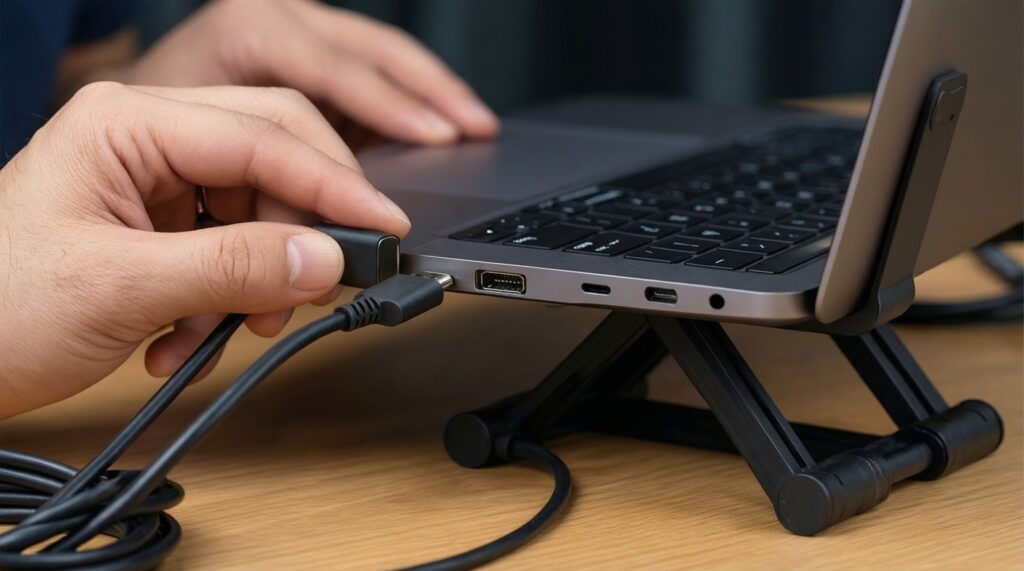
Verify your laptop's USB-C supports video (DP Alt Mode) or plan for HDMI + USB power. Then confirm stand stability and cable needs.
Are built-in speakers/webcams on portable monitors good for meetings?
They're often serviceable but not a primary reason to buy. For consistent meetings, plan to use a headset and your laptop's camera unless proven otherwise.
How do I decide between "จอพกพา แบบไม่ทัช ราคา" and touch pricing?
Pay extra for touch only if you'll use annotation/pen input regularly. Otherwise, spend the difference on a better panel tier, accessories, or a reliable connection setup.
Which is safer for travel and cafés in Thailand?
Non-touch matte screens are usually less distracting under bright lighting and easier to keep clean. If you need touch, prioritize a sturdy case/stand to prevent wobble and damage.