
If you want a portable display that "just works" with a Mac, prioritize a single-cable USB‑C monitor that supports video (DisplayPort Alt Mode) and adequate power pass-through; choose Thunderbolt only when you need docking-class expandability; use HDMI mainly for presentations or legacy gear with the right adapter. This avoids most wrong buys.
Compatibility Snapshot for Mac + Portable Displays
- Best default for most people: USB‑C portable monitor with DP Alt Mode + power pass-through (one cable for video and often charging).
- Best for multi-device setups: Thunderbolt when you want hub/dock features, higher headroom, and cleaner macOS integration.
- Best for conference rooms: HDMI with a reliable Mac adapter; great for "plug into projector/TV now" scenarios.
- Most common mismatch: "USB‑C" port that is power-only or "data-only" (no video).
- Most common disappointment: expecting one-cable behavior from HDMI (HDMI carries video/audio, not power).
- Buying angle in Thailand: when you "ซื้อจอพกพา ราคา" first, verify specs first (DP Alt Mode / PD / brightness), then compare price.
How USB‑C Delivers Video, Power and Data to Macs
For a จอพกพา Mac, "USB‑C" is a connector shape, not a guarantee of video. Use these criteria to confirm the monitor will actually match your Mac and your workflow.
- Video over USB‑C (must-have for one-cable): Look for DisplayPort Alt Mode (often written as "USB‑C DP Alt Mode"). Without it, you'll get charging or USB data, but no picture.
- Power Delivery direction: Decide whether you need the monitor to charge the Mac (PD pass-through/output) or you're fine powering the monitor separately.
- Realistic one-cable setup: Many จอพกพา USB-C สำหรับ MacBook units do video+power in one cable only if you also provide enough power into the monitor (via its second USB‑C or power adapter).
- macOS scaling comfort: A "sharp but readable" setup depends on resolution and screen size; check that macOS offers comfortable scaled options for your use.
- Refresh rate needs: 60 Hz is the safe default; higher refresh is nice for motion but increases bandwidth and sometimes forces compromises.
- Color and panel intent: If you edit photo/video, prioritize IPS/OLED quality and color modes; if you code/write, prioritize matte coating and stable brightness.
- OSD controls and inputs: A second input (HDMI) can save you on days when USB‑C video isn't available (office PCs, older devices).
- Audio behavior: Some portable monitors expose audio devices over USB‑C/HDMI; if you never use it, it's fine, but don't buy expecting great speakers.
Thunderbolt vs USB‑C: Bandwidth, Features and macOS Integration
Thunderbolt uses the USB‑C connector but adds stricter requirements and more capability. A จอพกพา Thunderbolt สำหรับ Mac makes sense when you want "monitor + dock" behavior; otherwise, a good USB‑C DP Alt Mode portable monitor is usually the cleaner value.
| Variant | Who it fits | Pros | Cons | When to choose |
|---|---|---|---|---|
| USB‑C portable monitor (DP Alt Mode, no hub) | Commuters, students, cafe workers | Simple; light; often true one-cable video; usually best value | Limited ports; may need extra power for stable brightness | When you want a straightforward จอพกพา USB-C สำหรับ MacBook with minimal accessories |
| USB‑C portable monitor + PD pass-through | People who dislike carrying multiple chargers | Can power/charge through the monitor; reduces cable mess | Pass-through wattage may be insufficient for heavy loads; still not a "dock" | When you want one USB‑C to Mac plus one charger into the monitor |
| Thunderbolt display/dock-style monitor | Desk users who also travel; power users | Best single-cable desktop experience; ports for SSD/LAN/audio; strong macOS integration | Costly; less "portable" in practice | When your portable display is also your primary desk hub |
| USB‑C monitor + separate Thunderbolt/USB‑C dock | Creators needing storage and peripherals | Flexible; upgrade dock independently; great peripheral support | More items/cables; more setup points to fail | When you need fast external drives, card readers, or wired network reliably |
| HDMI portable monitor + USB power | Presenters and mixed-device households | Universal video input; works with consoles/cameras easily | No one-cable to Mac; adapter often required for Mac; more cables | When you must support many devices and don't mind powering separately |
| USB graphics (DisplayLink-class) via USB‑A/USB‑C data | Edge cases (corporate setups) | Works even when native video-out is limited | Driver-dependent; can add latency; more troubleshooting | Only when you explicitly know you need a driver-based workaround |
HDMI and Macs: Native Support, Adapters and Limitations
HDMI is the "most compatible plug" in meeting rooms, but it's rarely the cleanest daily solution for a Mac portable monitor. If your main question is จอพกพา HDMI ต่อ MacBook, use these scenario rules.
- If your Mac has a built-in HDMI port (some models do), then HDMI is straightforward for video, but you'll still need separate power for the portable monitor.
- If your Mac has only USB‑C/Thunderbolt, then you'll need a USB‑C-to-HDMI adapter/cable; choose one that explicitly supports your target resolution/refresh.
- If you want a single-cable travel setup, then avoid HDMI-first monitors; pick USB‑C DP Alt Mode instead to reduce cables and failure points.
- If you present in hotels/universities, then carry HDMI as a backup even when your main monitor is USB‑C-HDMI is still the common denominator.
- If you see flicker or random disconnects over HDMI, then shorten the HDMI chain (fewer couplers/dongles) and prefer a single well-rated adapter + cable.
Selecting a Portable Monitor: Resolution, Refresh Rate, and Power Needs
- Decide your primary use: writing/coding, design, gaming, presenting, or dual-device (Mac + console).
- Pick a size you will actually carry: larger is easier on eyes; smaller travels better. Don't overbuy size if you won't bring it.
- Choose resolution for comfort, not pride: prioritize clear text and usable scaling in macOS; confirm the monitor supports the resolution you intend to run daily.
- Lock refresh rate expectations: default to 60 Hz unless you know you benefit from higher refresh and your connection path supports it.
- Plan power: decide between (a) powering the monitor separately, (b) powering the monitor and using PD pass-through to the Mac, or (c) using a dock at the desk.
- Confirm port reality: require "USB‑C DP Alt Mode" for the one-cable option; treat vague "USB‑C supported" claims as incomplete until proven.
- Then compare deals: after specs are confirmed, you can safely shop by "ซื้อจอพกพา ราคา" without accidentally downgrading compatibility.
Cables, Adapters and Required Specs - a Practical Compatibility Checklist
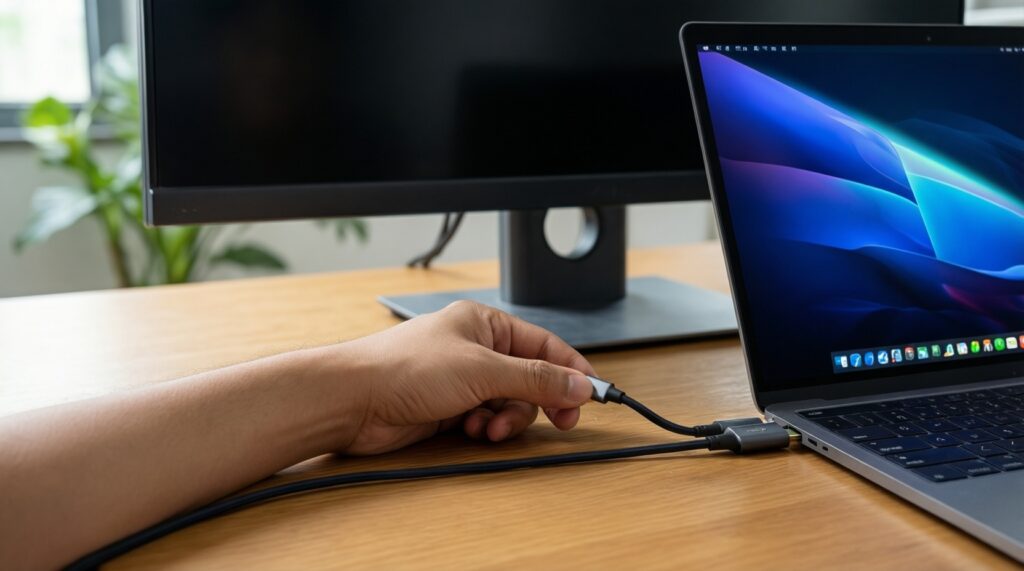
- Mistaking any USB‑C cable for a video cable: some cables are charge-only; use a cable explicitly rated for video/Alt Mode or known-good from a reputable brand.
- Assuming the monitor's USB‑C port supports video input: some USB‑C ports are power-in only. Verify "USB‑C (DP Alt Mode input)" in specs.
- Relying on HDMI for one-cable travel: HDMI won't power the monitor; plan an extra USB power cable/adapter.
- Buying a cheap multiport dongle and expecting stability: adapters vary widely; if you see disconnects, simplify your chain (Mac → single adapter → monitor).
- Overestimating PD pass-through: if the Mac drains battery under load, the monitor may not pass enough power; treat pass-through as convenience, not guaranteed full-speed charging.
- Forgetting "input selection" friction: monitors with both USB‑C and HDMI are great, but you want quick input switching (buttons/OSD) for real-world use.
- Ignoring physical orientation needs: if you want portrait mode, confirm the monitor has a stable stand or VESA support (otherwise it becomes annoying fast).
- Expecting Thunderbolt features from USB‑C: USB‑C DP Alt Mode is excellent for a portable screen, but it's not automatically a high-end dock.
- Not packing a fallback: for business travel, carry a short known-good USB‑C video cable and one HDMI adapter as insurance.
Persona Guide: Which Portable Display Fits Different Mac Users

For a commuter who wants a reliable จอพกพา Mac, the best fit is usually a lightweight USB‑C DP Alt Mode portable monitor with predictable one-cable behavior; for a creator who lives on external drives and peripherals, a Thunderbolt-centric setup (monitor with hub features or a separate dock) tends to feel smoother; for a presenter, an HDMI-friendly monitor plus a dependable Mac adapter reduces venue surprises; for a price-driven buyer, confirm DP Alt Mode/PD first, then shop "ซื้อจอพกพา ราคา" to avoid paying less for a non-working combo.
Troubleshooting, Myths and Quick Clarifications
Why does my USB‑C portable monitor charge but shows no image on my Mac?
The USB‑C link may be power-only or data-only. You need a monitor input that supports DisplayPort Alt Mode and a cable that supports video.
Is Thunderbolt required for a portable monitor on Mac?
No. Most portable displays work best via USB‑C DP Alt Mode; Thunderbolt is mainly for dock-like expansion and higher-end desktop convenience.
Will HDMI give me the same "one cable" experience as USB‑C?
No. HDMI carries video/audio but not power, so portable monitors will still need separate power via USB.
Can I use any USB‑C to HDMI adapter for my MacBook?
Not safely. Pick an adapter/cable that explicitly supports your target resolution and refresh, and avoid stacking multiple adapters.
My portable monitor keeps disconnecting when I plug in a charger-what's happening?
Power negotiation or a marginal cable/adapter can cause resets. Try a shorter known-good USB‑C video cable and power the monitor from a stable adapter.
If a monitor says "USB‑C", does that guarantee it works as a จอพกพา USB-C สำหรับ MacBook?
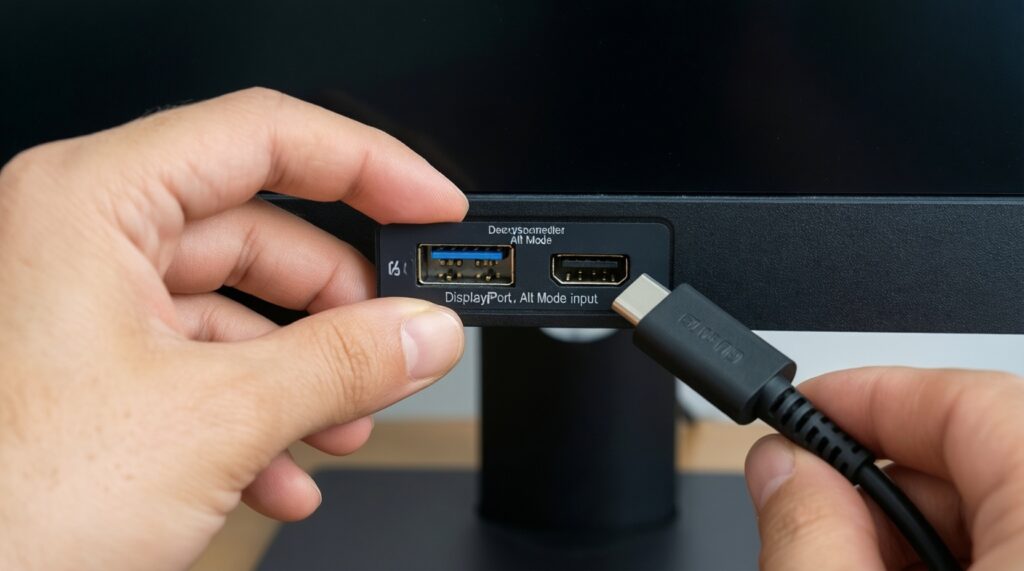
No. "USB‑C" alone is ambiguous; confirm "DP Alt Mode input" and how the monitor is powered.