
If your Mac has USB‑C/Thunderbolt with DisplayPort Alt Mode, a single‑cable USB‑C portable monitor is usually the cleanest choice: one cable for video (and sometimes power). If your Mac is HDMI-only, older USB‑C without video, or you need extra ports, plan for an adapter/hub and choose the monitor input accordingly.
Core criteria for choosing a portable monitor for your Mac
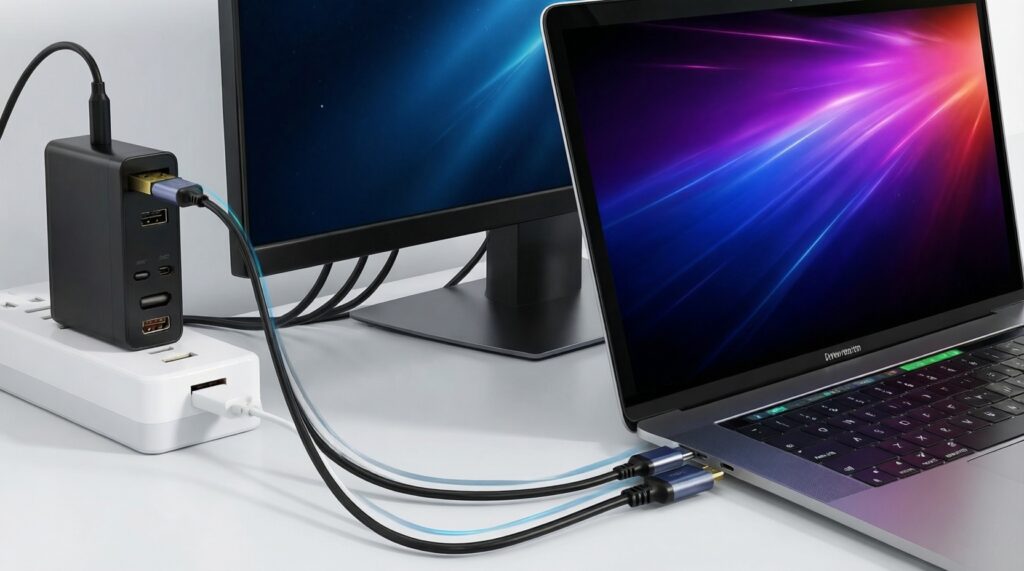
- Your Mac's port type (Thunderbolt/USB‑C with video vs HDMI vs mixed) determines whether "USB‑C เดียวจบ" is realistic.
- Monitor input options: USB‑C (DP Alt Mode), mini‑HDMI/HDMI, and whether both can work simultaneously.
- Power plan: bus-powered vs external power; whether pass‑through charging is needed for long sessions.
- Resolution and scaling on macOS: pick for readable UI at your typical viewing distance.
- Refresh rate and response needs: coding/spreadsheets vs motion-heavy work.
- Color requirements: sRGB-only vs wider gamut; consistent brightness matters more than marketing tags.
- Workflow portability: kickstand/cover stability, cable strain relief, and how many devices you'll attach.
How Mac models affect connectivity: Thunderbolt, USB‑C and legacy ports
- Confirm USB‑C video support: a USB‑C port can exist without DisplayPort Alt Mode on some devices/docks; your Mac's Thunderbolt/USB‑C ports typically support external displays, but the chain (hub/cable/monitor) must as well.
- Count usable ports while charging: if you have only two ports, one might be occupied by power-this influences whether a hub is mandatory.
- Know your target setup: one extra screen for writing, or a second screen plus peripherals (SSD, mouse, Ethernet) changes the best topology.
- Decide "single cable" priority: if you frequently move between rooms/cafes, fewer pieces beats peak flexibility.
- Check for clamshell use: running the MacBook closed often pushes you toward stable power + reliable video (sometimes via a better hub/cable).
- Audio expectations: many portable panels have weak speakers; plan for Mac audio output instead.
- HDCP/content playback: if you use protected video, avoid exotic adapters and keep the chain simple (direct USB‑C or direct HDMI).
- Cable quality matters: "charging" USB‑C cables may not carry video; for USB‑C displays you want a full‑feature USB‑C cable rated for video.
Quick mapping: common Mac lineups to monitor connection types
| Mac lineup (typical) | Most convenient portable monitor type | Likely adapter need | Notes you should check |
|---|---|---|---|
| MacBook Air (USB‑C/Thunderbolt) | USB‑C DP Alt Mode (single‑cable) | Usually none; optional USB‑C hub for extra ports | Great fit for จอพกพาสำหรับ MacBook Air when you prioritize mobility and minimal kit. |
| MacBook Pro (USB‑C/Thunderbolt; some models also HDMI) | USB‑C DP Alt Mode or HDMI-input portable monitor | None if you pick the matching input; hub if you need peripherals | For จอพกพาสำหรับ MacBook Pro, choose based on whether you want one-cable desk docking or direct HDMI simplicity. |
| iMac (Thunderbolt/USB‑C varies by generation) | USB‑C DP Alt Mode; HDMI-input if your iMac has HDMI out via adapter | Often a USB‑C to HDMI adapter if monitor is HDMI-only | Portable monitor can be a "sidecar-like" extra panel without relying on Wi‑Fi. |
| Mac mini (USB‑C/Thunderbolt + HDMI) | HDMI-input portable monitor for direct connection, or USB‑C DP Alt Mode | None if using HDMI; otherwise depends on chosen monitor | HDMI is predictable for kiosks/field work; USB‑C can be cleaner if the monitor is bus-powered. |
| Older Macs with USB‑A/HDMI (no USB‑C video) | HDMI-input portable monitor | Often none if HDMI exists; otherwise USB‑C-to-HDMI is not enough without the right port | If you're asking ซื้อจอพกพา สำหรับ Mac ต้องใช้อะแดปเตอร์ไหม, this is where the answer is most often "yes." |
Single‑cable USB‑C monitors: benefits, limitations and power delivery realities
| Option | Who it fits | Pros | Cons | Choose when |
|---|---|---|---|---|
| USB‑C DP Alt Mode, bus-powered (no pass-through) | Mobile work, one extra screen, minimal gear | One cable; fastest setup; cleanest for จอพกพาสำหรับ Mac | Drains Mac battery; brightness may dip under low power | You move a lot and can live with shorter unplugged sessions |
| USB‑C DP Alt Mode with pass-through charging (USB‑C in + USB‑C out) | Desk + travel hybrid, long sessions | One-cable feel while still charging; fewer dongles | Pass-through can be picky about chargers/cables; may not power hungry loads | You want a จอพกพา USB-C สำหรับ MacBook that behaves like a mini dock |
| USB‑C monitor with built-in USB hub (USB‑A ports) | Keyboard/mouse/USB key attached to monitor | Cleans up cabling; peripherals follow the screen | Hub bandwidth may be limited; can introduce disconnects with poor cables | You want a compact "single plug-in" station without a separate hub |
| HDMI-input portable monitor (plus USB for power) | Mac mini, older Macs, stable video chain | Very compatible; easy troubleshooting; predictable for protected video | Two cables (video + power); needs adapter if your Mac lacks HDMI | You value reliability over minimalism or you already use HDMI daily |
| Dual-input portable monitor (USB‑C + HDMI) with auto-switch | Switching between Mac + another device (console/tablet) | Flexible; future-proof; simpler sharing | More settings; auto-switch can be annoying in mixed setups | You frequently swap sources and want one screen for everything |
| USB portable "DisplayLink" monitor (driver-based over USB data) | Edge cases where native video output is constrained | Can add displays even when ports are limited | Requires drivers; can add latency; not ideal for color-critical work | Native USB‑C video/HDMI options don't meet your multi-screen need |
When an adapter is unavoidable: dongles, hubs and compatibility pitfalls
- If your portable monitor is HDMI-only and your Mac has only USB‑C/Thunderbolt, then use a USB‑C to HDMI adapter (simple dongle) or a hub with HDMI.
- If you need to charge the Mac and run the monitor on a 2‑port laptop, then pick either a USB‑C monitor with pass‑through or a USB‑C hub with Power Delivery so one port can handle charging + video/peripherals.
- If you use Ethernet/USB‑A SSDs in the same setup, then prefer a multiport hub (USB‑C with HDMI + USB‑A + PD) rather than chaining multiple single adapters.
- If the monitor flickers or repeatedly disconnects over USB‑C, then replace the cable with a full‑feature USB‑C video cable (not charge-only) and avoid no-name hubs; most "it works on Windows but not on Mac" cases are cable/hub related.
- If you plan to connect two external displays, then verify your exact Mac's external display support first; if it's limited, a DisplayLink dock can be the workaround, with the trade-off of drivers and higher complexity.
Concrete adapter picks (common, easy to find in TH)
- USB‑C to HDMI 2.0 adapter: simple, low-risk for one portable HDMI screen.
- USB‑C multiport hub with HDMI + PD: best when you must answer "ซื้อจอพกพา สำหรับ Mac ต้องใช้อะแดปเตอร์ไหม" with "yes, and I also need charging."
- USB‑C to USB‑A adapter: for legacy peripherals when your monitor/hub doesn't provide USB‑A.
- DisplayLink dock: only when you knowingly accept drivers to add more screens than your Mac supports natively.
Resolution, refresh rate and color fidelity: matching display specs to Mac GPU
- Pick a comfortable size/resolution pair: prioritize readable text without constant zooming; macOS scaling should look sharp at your typical distance.
- Decide your refresh target by work type: 60 Hz is fine for office/coding; consider higher refresh only if you actually benefit from smoother motion.
- Verify color mode availability: ensure the monitor exposes a consistent standard profile (at minimum a stable sRGB-like mode) if you do design/content.
- Check brightness consistency: bus-powered panels can be dimmer; if you work in bright cafés, favor models that can take external power.
- Avoid overpaying for specs your Mac won't use: a premium refresh/color spec is wasted if your workflow is terminal + docs and you value portability most.
- Confirm macOS controls you need: some portable monitors rely on finicky OSD buttons; consider usability if you change inputs/brightness often.
Practical setup scenarios by Mac lineup: MacBook Air, MacBook Pro, iMac, Mac mini
- MacBook Air, two ports: buying a bus-powered USB‑C screen can be great-until you realize you also need charging; prefer pass-through or bring a compact hub + charger for long sessions.
- MacBook Pro with HDMI: many users still buy USB‑C-only screens and then add adapters; if you already like HDMI reliability, choose a dual-input (USB‑C + HDMI) portable monitor and keep the option open.
- Assuming any USB‑C cable works: charge-only cables cause "no signal" on USB‑C monitors; keep a known-good full-feature USB‑C video cable in the bag.
- iMac desk use: a portable monitor often sits off-axis; prioritize stable stand/cover and viewing angles over extreme thinness.
- Mac mini in the field: HDMI portable monitors are easier to troubleshoot quickly; you can power the monitor separately without depending on USB‑C video support.
- Mixing hubs + pass-through + long cables: every extra link adds failure points; simplify the chain before blaming macOS.
- Color-critical expectations: portable panels vary a lot; if color matters, treat the portable display as a secondary canvas and keep final checks on a calibrated main screen.
- Buying for one device only: if you may also use the monitor with a console/tablet, dual-input (USB‑C + HDMI) prevents re-buying later.
Decision tree: pick the right portable monitor based on your Mac and workflow
- Does your Mac have USB‑C/Thunderbolt ports?
- If yes: go to step 2.
- If no (HDMI/legacy only): choose an HDMI-input portable monitor; add power via USB, and avoid USB‑C video-only monitors.
- Do you need to charge the Mac while using the monitor?
- If yes: prefer a USB‑C monitor with pass-through charging or a USB‑C hub with PD + HDMI.
- If no: a bus-powered USB‑C DP Alt Mode monitor is the lightest "single cable" route.
- Do you need extra ports (USB‑A, Ethernet, SD) at the same time?
- If yes: choose a USB‑C monitor with a built-in hub or plan a quality multiport hub.
- If no: keep it direct (Mac → monitor) for maximum stability.
- Will you share the monitor with non‑USB‑C devices?
- If yes: choose a dual-input (USB‑C + HDMI) portable monitor.
- If no: optimize purely for your Mac and cable simplicity.
- Are you trying to exceed your Mac's native external display limits?
- If yes: consider a DisplayLink-based option only if you accept drivers and trade-offs.
- If no: stick to native USB‑C/HDMI video paths.
Best fit for frequent travel and fast setup is a จอพกพา USB-C สำหรับ MacBook that supports USB‑C DP Alt Mode (ideally with pass-through if you work long hours). Best fit for maximum compatibility and predictable troubleshooting is an HDMI-input portable monitor plus a solid USB‑C to HDMI adapter when needed.
Common practical concerns and quick fixes for Mac + portable display
Why does my USB‑C portable monitor show "No Signal" on my Mac?
Most often it's a charge-only USB‑C cable or a hub that doesn't pass DisplayPort Alt Mode. Try a known full-feature USB‑C video cable and connect directly Mac → monitor.
Do I always need an adapter (ซื้อจอพกพา สำหรับ Mac ต้องใช้อะแดปเตอร์ไหม)?
No-if your Mac has USB‑C/Thunderbolt and your monitor supports USB‑C DP Alt Mode, you can often go adapter-free. You typically need an adapter for HDMI-only monitors or when you need charging + extra ports.
My MacBook Air battery drops fast with a portable monitor-what should I change?
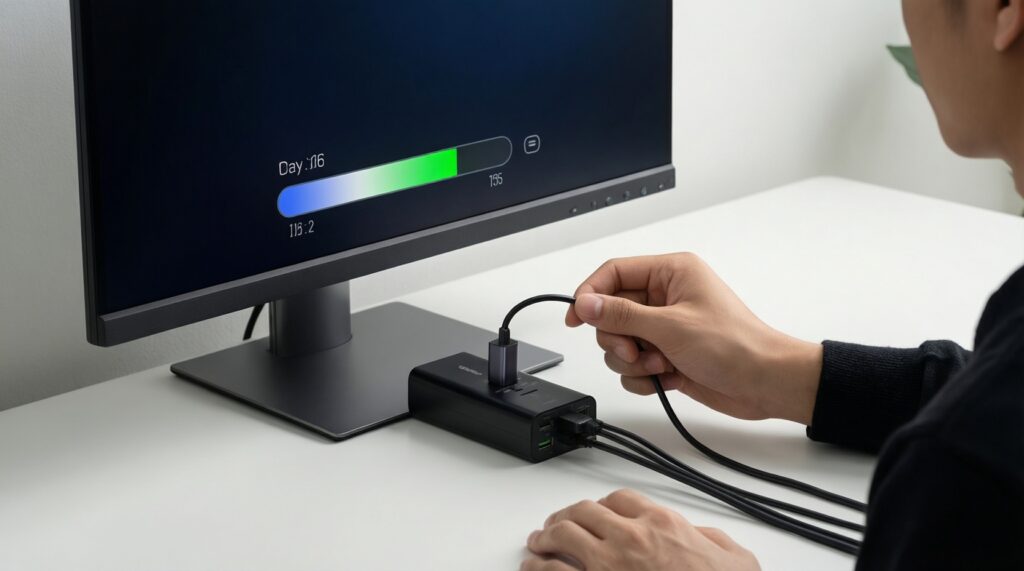
Use external power for the monitor (if supported) or switch to a USB‑C model with pass-through charging. Lowering brightness also helps more than lowering refresh rate in most cases.
Is an HDMI portable monitor worse than USB‑C for Mac?
Not inherently; HDMI is often more predictable. USB‑C is mainly about convenience (one cable) and sometimes hub-like features.
Why does the image look soft on macOS compared to my built-in display?
It's usually scaling and pixel density rather than "Mac incompatibility." Try a different scaled resolution in Display settings and sit slightly farther from lower-PPI panels.
Can I use one portable monitor with both MacBook Pro and Mac mini?
Yes-dual-input (USB‑C + HDMI) models are easiest. Otherwise, plan to swap between USB‑C and HDMI with the right cable/adapter.
Do I need special settings for color work on a portable monitor?
Use the monitor's most neutral mode and set an appropriate macOS color profile if available. For critical work, treat the portable display as secondary unless you calibrate it.