
If you want a faster Mac workflow, prioritize three accessory upgrades: a reliable USB-C hub (stable power + the right ports), a portable SSD matched to your Mac's fastest interface, and input devices that reduce friction (keyboard layout + pointing comfort). This guide ranks budget-first options and shows what to buy for your specific work style in Thailand.
Performance Snapshot: What Actually Speeds Up Mac Workflows
- Pick a hub for stability first: solid Power Delivery pass-through and clean video output matter more than "maximum ports."
- For external storage, interface compatibility beats marketing: choose Thunderbolt only if your Mac and workflow can use it; otherwise a good USB-C SSD is the value play.
- Keyboard feel is productivity: the right switch type and layout reduces errors and fatigue more than chasing "premium" materials.
- Pointing devices are speed tools: a mouse/trackpad that fits your grip and app shortcuts improves precision and reduces micro-pauses.
- Cables and docking strategy prevent hidden slowdowns: bad cables and messy chains create random disconnects and display issues that cost time.
USB-C Hubs: Ports, Power Delivery, and Real-World Throughput
Why this category changes speed more than people expect
A hub determines whether your MacBook charges reliably, drives an external display without glitches, and keeps peripherals connected under load. For many office setups, the "slowdown" is actually reconnecting storage, fighting flickering monitors, or losing network stability. If you're researching ซื้อ USB-C Hub สำหรับ MacBook, treat it as a reliability purchase, not a port-count contest.
How to choose (practical criteria)
- Power Delivery (PD) pass-through behavior: verify the hub supports PD pass-through and doesn't overheat under charge + display use.
- Port mix you actually use: prioritize HDMI/DisplayPort, USB-A for dongle-free legacy, and SD/microSD only if you import media often.
- Video compatibility for your monitor: confirm resolution/refresh support and whether your Mac model supports multiple displays (especially on some base Apple Silicon laptops).
- Storage path clarity: avoid hubs where "USB-C" is only for charging; you want a data-capable USB-C port if you'll attach fast storage.
- Ethernet quality: choose Gigabit Ethernet if you do stable calls, remote work, or large transfers; cheap controllers can cause dropouts.
- Build + strain relief: short, stiff cables and flimsy housings fail early; look for decent cable thickness and heat management.
- Placement: travel "sidecar" hubs are compact but can stress the MacBook port; desk hubs/docks reduce mechanical wear.
- Compatibility with your Mac + OS: confirm it's tested on your macOS version and your Mac's port generation (USB4/Thunderbolt vs USB-C only).
Top 3 budget-aware picks (low-cost to higher-tier)
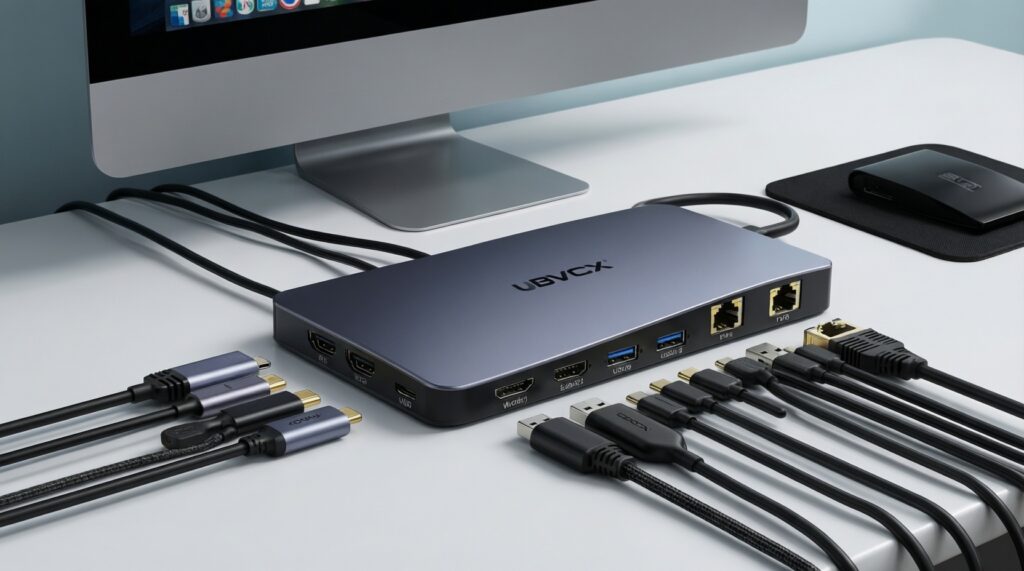
- Low-cost pick: a compact 6-in-1 USB-C hub (HDMI + 2×USB-A + SD/microSD + PD). Best for meetings, basic desk setups, and travel.
- Best value: an 8-in-1 hub with Ethernet plus the essentials. Best for stable WFH where Wi‑Fi is inconsistent in condos/cafés.
- Higher-tier alternative: a desktop dock (USB4/Thunderbolt-class) when you regularly run external displays plus storage and want fewer disconnects. Higher upfront cost, fewer headaches.
Context note for Thailand shoppers: bundles advertised as อุปกรณ์เสริม MacBook สำหรับทำงาน often include a hub; check PD and display support carefully before buying.
Portable SSDs for Mac: Interface Choices, Sustained Speeds, and Endurance
Why portable SSD choice affects day-to-day speed
External storage speed is the difference between waiting on file copies, previews, and app caches versus staying in flow. For ซื้อ SSD พกพา สำหรับ Mac, focus on the interface your Mac can actually use, sustained performance (not just peak), and thermal behavior during long transfers.
How to choose without getting tricked by spec sheets
- Match the interface to your Mac: USB-C can mean many things; confirm whether your port supports USB 3.x, USB4, or Thunderbolt and buy accordingly.
- Prefer NVMe-based solutions for heavy work: NVMe portable SSDs (or NVMe enclosures) typically handle multitasking and large projects better than SATA-based portable drives.
- Plan for sustained transfers: small, slim drives may throttle when hot; choose a model/enclosure with good heat dissipation for long copies.
- Endurance and reliability signals: look for clear warranty terms, brand reputation, and controller stability; endurance ratings (e.g., TBW) are useful when provided, but compare within the same class.
- Security workflow: decide whether you need hardware encryption, or you'll use FileVault/APFS encryption instead.
Comparison of budget-to-premium portable SSD paths
| Variant | Who it fits | Pros | Cons | Choose when |
|---|---|---|---|---|
| USB-C portable SSD (USB 3.2 class, NVMe inside) | Most users doing office + creative work | Strong real-world feel; easy plug-and-play; good price-to-performance | Can throttle if very small/compact; "USB-C" labeling can hide slower modes | You want a simple, budget-first speed upgrade without Thunderbolt pricing |
| Thunderbolt NVMe portable SSD | Video editors, devs, and large project workflows | Best responsiveness when your Mac supports it; handles heavy I/O well | Higher cost; requires correct cable; can run warm | You regularly work from the drive (scratch/project) and want premium performance |
| NVMe SSD + USB4/Thunderbolt enclosure (DIY-style) | Intermediate users who like value tuning | Flexible upgrades; can target the interface you have; often great value long-term | More variables (controller/cable/thermal pads); setup effort | You want the best price-to-performance and can handle small compatibility checks |
| SATA-based portable SSD (USB 3.x) | Backups, photo libraries, general storage | Often cheaper; stable for everyday copies; widely compatible | Lower ceiling than NVMe; less "snappy" for heavy workloads | You mainly store files and do occasional transfers, not active editing |
| High-quality USB flash drive (for handoff) | Quick file sharing between devices | Small; convenient for short transfers | Highly variable performance and thermals; not ideal for project work | You need a pocket handover tool, not your main working drive |
Top 3 budget-aware picks (what to buy by priority)
- Low-cost pick: a reputable SATA-based portable SSD for backups and general storage (stable, affordable).
- Best value: a USB-C NVMe portable SSD (USB 3.2 class) for noticeably faster project loads and transfers.
- Higher-tier alternative: Thunderbolt NVMe portable SSD for sustained heavy editing or running VMs/projects directly from the drive.
When comparing deals, treat flashy "up to" speed labels as marketing; your cable, hub, and port generation determine results more than the box text. This is a core part of choosing อุปกรณ์เสริม Mac เพิ่มประสิทธิภาพ without overspending.
Mac Keyboards Compared: Mechanical, Scissor, and Low-Profile Options
Why keyboards matter for speed (not just comfort)
Your keyboard influences typing accuracy, shortcut consistency, and fatigue. The "fastest" keyboard is the one that reduces mistakes and keeps your hands relaxed during long sessions. If you're comparing คีย์บอร์ด เมาส์ สำหรับ Mac ราคา in Thailand, decide whether you're buying for travel, desk stability, or all-day writing/coding.
How to choose the right type
- Mechanical: best for tactile feedback and long typing sessions; can be loud and tall; choose Mac-friendly keycaps (Command/Option).
- Scissor switch: stable, quiet, familiar for Mac users; great for office environments and shared spaces.
- Low-profile mechanical: a middle ground-faster feel than scissor for some users, less height than full mechanical; often higher cost.
Scenario-based recommendations (with budget vs premium emphasis)
- If you write/codify for hours and want fewer typos, then try a mechanical board (budget: wired mechanical; premium: wireless low-profile mechanical tuned for Mac layouts).
- If you work in cafés, calls, or shared offices, then pick a scissor keyboard (budget: compact wired scissor; premium: high-quality multi-device wireless scissor for Mac/iPad).
- If you travel often and want a consistent layout, then choose a compact board with reliable Bluetooth and Mac legends (budget: small rechargeable BT; premium: better stabilizers + stronger BT switching).
- If you live in shortcuts (Spotlight, app hotkeys, editing commands), then prioritize Mac layout + programmable layers (budget: basic hotkey support via macOS; premium: keyboard with robust remapping via vendor app that doesn't break on macOS updates).
Pointing Devices for Productivity: Mice, Trackballs, and Trackpads
Why the pointing device is a workflow multiplier
A good pointing device reduces micro-delays: overshooting targets, wrist repositioning, and repetitive strain. For many people, the biggest real gain comes from pairing comfortable hardware with consistent gestures and app shortcuts.
How to choose (fast decision checklist)
- List your primary task: spreadsheets, design, coding, video, or general office.
- Choose the movement style: mouse (fast travel), trackball (minimal desk space), or trackpad (gestures + navigation).
- Decide if you need silent clicking for calls/coworking.
- Confirm macOS support: smooth scrolling, button mapping, and gesture tools you can maintain.
- Pick connectivity: dongle USB receiver (stable) vs Bluetooth (simpler travel), based on your hub/port availability.
- Check ergonomics: grip size, hand tension, and whether your wrist stays neutral after 30-60 minutes.
- Validate your desk reality: limited space strongly favors trackball/trackpad.
Top 3 budget-aware picks (by typical use)
- Low-cost pick: a simple, comfortable Bluetooth mouse with reliable scrolling for everyday office work.
- Best value: an ergonomic mouse with at least two side buttons (back/forward or app shortcuts) for faster navigation.
- Higher-tier alternative: a multi-device productivity mouse or a premium trackpad if you rely heavily on macOS gestures and multi-desktop workflows.
Practical Docking and Cable Strategies to Minimize Latency and Clutter
Why docking strategy prevents hidden slowdowns
Many "performance" problems are actually cable/chain problems: unstable charging, display flicker, random storage ejections, and Bluetooth interference. A clean docking strategy keeps your Mac consistent day-to-day-exactly what people mean when they search for อุปกรณ์เสริม MacBook สำหรับทำงาน.
How to choose a setup that stays stable
- Desk-first: one hub/dock, one monitor cable, one power path, and short high-quality data cables for storage.
- Travel-first: one compact hub, one proven HDMI cable, and avoid stacking adapters.
- Separate heavy I/O: if possible, connect external SSD directly to the Mac (or the fastest port on the dock), not through extra adapters.
Common purchase mistakes that cause real workflow friction
- Buying a hub mainly for port count and ignoring PD stability.
- Assuming every USB-C cable supports video and high-speed data.
- Chaining: Mac → hub → adapter → storage, then blaming the SSD for disconnects.
- Using unknown-brand HDMI cables that cause intermittent flicker at higher resolutions.
- Placing a hub where the cable is constantly bent or stressed (eventual failures).
- Overloading one side of the MacBook with heavy dongles that twist the port.
- Expecting Ethernet to fix everything while keeping weak router/cafe network conditions unchanged.
- Ignoring heat: hubs and SSDs can get warm; cramped placement increases throttling and instability.
Best Value Accessories: Budget Picks That Deliver Noticeable Time Savings
Best for most people: a reliable 8-in-1 hub with Ethernet plus a USB-C NVMe portable SSD-this combo usually gives the clearest day-to-day gains without premium pricing. Best for heavy creative workloads: a desktop dock plus a Thunderbolt NVMe portable SSD. Best for typing-intensive work: upgrade your keyboard first, then add an ergonomic mouse.
Practical Questions When Choosing Mac Accessories
Will a USB-C hub slow down my external SSD?
It can, depending on the hub's internal bandwidth and whether the USB-C port is data-capable. For best consistency, connect the SSD to the fastest direct port on your Mac or the dock's highest-speed port.
Do I need Thunderbolt for a portable SSD on Mac?
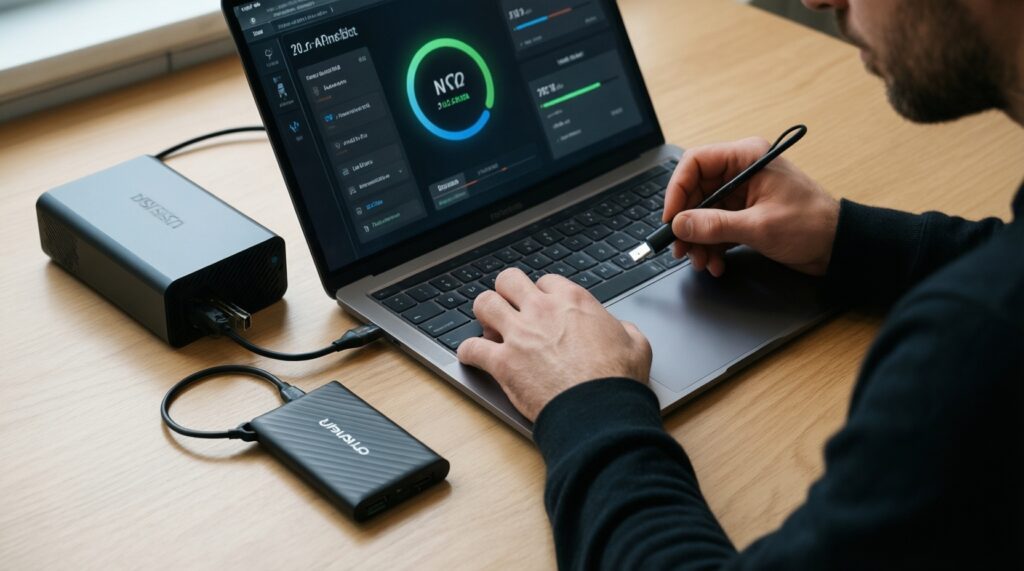
Only if your workflow regularly works directly from the external drive (editing, large builds, VMs). For many users, a good USB-C NVMe portable SSD is the better price-to-performance choice.
What's the safest "budget-first" hub feature set to buy?
PD pass-through, one stable display output, and enough USB ports for your daily peripherals. Add Ethernet if you do frequent video calls or large transfers.
Is a mechanical keyboard always faster for Mac work?
No. Mechanical can improve accuracy for some users, but a quiet scissor keyboard may be faster in shared environments because it reduces distractions and fatigue.
Mouse vs trackpad vs trackball: which is best for productivity?
Choose based on desk space and hand comfort. Trackpads excel for macOS gestures, mice excel for fast pointer travel, and trackballs are strong when space is limited.
How do I avoid buying the wrong cable?
Buy cables for the specific purpose (charging-only vs data vs video) and avoid unverified "all-in-one" claims. If your display or SSD behaves inconsistently, swap the cable first before replacing devices.