
To choose a portable monitor that feels "worth it," decide your primary job first (work, gaming, color work, travel), then lock three specs: panel (IPS vs OLED), refresh rate (60Hz vs 120Hz), and resolution/HDR level. This prevents overpaying for features your laptop, phone, and workflow won't actually use when you ซื้อจอภาพพกพา.
Essential decision factors at a glance
- IPS vs OLED: IPS is practical for mixed work; OLED is for contrast and creative viewing, but needs burn-in awareness.
- 60Hz vs 120Hz: 60Hz is fine for office work; choose จอภาพพกพา 120Hz for gaming and fast scrolling comfort.
- HDR reality check: "HDR" badges vary; จอภาพพกพา HDR 4K only makes sense if your content pipeline is 4K/HDR end-to-end.
- Resolution: Pick for UI scale and text clarity, not bragging rights-especially on 13-16 inch screens.
- USB-C power/video: Prioritize single-cable USB-C (DP Alt Mode) and stable power delivery for daily plug-and-go.
- Ergonomics: A solid kickstand/VESA option often matters more than chasing peak specs.
Panel technology: IPS vs OLED - real-world tradeoffs
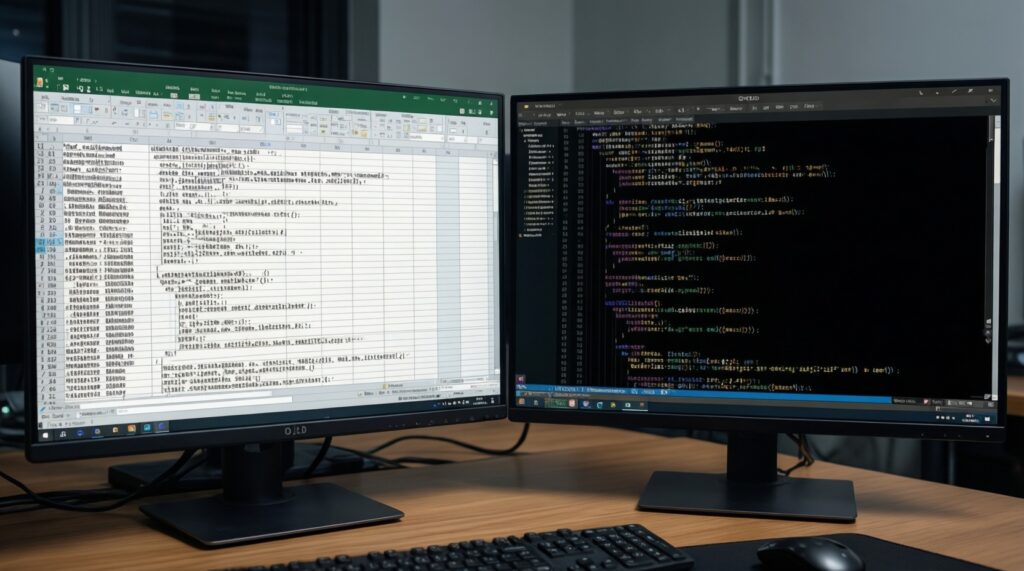
- Text clarity and "office comfort": IPS tends to look consistent across white/gray UI; OLED can show color fringing on some subpixel layouts-noticeable on spreadsheets and coding.
- Contrast and dark-scene detail: OLED wins for deep blacks and punchy scenes; IPS looks flatter in dim rooms.
- Color work expectations: OLED is great for previewing contrast and saturation; IPS is safer if you want predictable, "neutral" looking whites across long sessions.
- Burn-in risk management: OLED is better treated as a "mixed content" display (vary content, hide static taskbars, use sleep timers). IPS is worry-free for static dashboards.
- Outdoor and bright-room usability: Look for anti-glare coatings and sufficient brightness; glossy OLED often reflects more, which can reduce perceived contrast in Thailand's bright environments.
- Power draw on the go: OLED power can vary with content (bright screens consume more). IPS is typically steadier for battery planning.
- Budget logic: If you're comparing จอภาพพกพา IPS ราคา vs จอภาพพกพา OLED ราคา, only pay for OLED if you truly benefit from contrast/color impact (creative preview, media focus, premium travel setup).
Persona picks (budget / midrange / premium)
- Remote worker (docs, calls, spreadsheets): Budget: IPS 60Hz FHD; Midrange: IPS QHD; Premium: IPS with better stand + single-cable USB-C.
- Gamer (laptop/handheld): Budget: IPS 120Hz FHD; Midrange: IPS 120Hz with good overdrive; Premium: OLED 120Hz if you game in darker rooms and manage burn-in.
- Content creator (photo/video preview): Budget: IPS with solid factory calibration; Midrange: IPS QHD/4K; Premium: OLED for contrast-heavy grading previews (still validate on a reference display if needed).
- Frequent traveler (coffee shops, coworking): Budget: lightweight IPS; Midrange: IPS with matte coating; Premium: thin OLED only if reflections won't annoy you.
Refresh rate and latency: when 60Hz is enough and when to choose 120Hz
| Option | Who it suits | Pros | Cons | When to choose |
|---|---|---|---|---|
| 60Hz IPS (FHD) | Remote workers, students | Best value, easy on battery, widely compatible | Less smooth scrolling; gaming feels less responsive | If your day is email, docs, meetings, light creative work |
| 60Hz IPS (QHD/4K) | Text-heavy multitaskers, analysts | Sharper text, more workspace | Harder to drive; may force UI scaling; more bandwidth demands | If you prioritize crisp UI over motion smoothness |
| 120Hz IPS (FHD) | Gamers, "smoothness" fans | Smoother scrolling, lower perceived blur, better for fast games | May need tuning to avoid ghosting; more power use | If you specifically want จอภาพพกพา 120Hz for games and fast UI |
| 120Hz IPS (QHD) | Mixed use: gaming + work | Smooth + sharp balance | More expensive; needs capable GPU/connection | If you want one "do-it-all" portable monitor and your device can drive it |
| 120Hz OLED | Premium gaming/media users | Great contrast + smooth motion; strong perceived clarity | Burn-in management; reflections; price premium | If you game/watch in dim rooms and accept OLED care habits |
Practical thresholds for deciding 60Hz vs 120Hz
- Choose 60Hz if your priority is typing, reading, spreadsheets and you want simple compatibility.
- Choose 120Hz if you play competitive or fast camera-movement games, or if you're sensitive to scrolling judder.
- Choose 120Hz only if your connection supports it (USB-C DP Alt Mode / HDMI bandwidth) and your device can output the target refresh at the chosen resolution.
HDR on portable monitors: benefits, limitations and practical impact
- If you mainly work in Office apps and browser tools, then treat HDR as optional-spend more on a stable stand, matte coating, and reliable USB-C instead.
- If you watch a lot of HDR movies/series on the go, then OLED often delivers a more obvious "HDR-like" experience than IPS with an HDR label.
- If you edit HDR video, then use portable HDR as a preview screen; keep a consistent color-managed workflow and don't assume the portable panel is a mastering reference.
- If you're considering จอภาพพกพา HDR 4K, then confirm your laptop/phone can output 4K HDR over the chosen port and that your apps actually deliver HDR content.
- If you work in bright cafés, then prioritize anti-glare and sufficient brightness-HDR benefits fade when reflections dominate.
Resolution and pixel density: matching sharpness to your workflow
- Start with screen size: on 13-16 inch portable monitors, extra resolution helps text, but can force scaling that reduces "usable" space.
- Pick the main task: text-heavy work favors higher pixel density; gaming favors stable FPS and smoother refresh.
- Check your device output: verify it can drive your target resolution and refresh through the port you will actually use (USB-C or HDMI).
- Decide your scaling tolerance: if you dislike UI scaling, avoid going so high that icons/text become tiny.
- Match resolution to refresh goals: if 120Hz is non-negotiable, choose the resolution your GPU can sustain at 120Hz.
- Use "4K only when justified": choose 4K when you frequently view 4K timelines, detailed photos, or dense dashboards; otherwise QHD/FHD is often the more efficient choice.
Connectivity, power delivery and dockability for daily use
- Assuming any USB-C works: you need USB-C with DisplayPort Alt Mode for video; some USB-C ports are power/data only.
- Buying "single-cable" but forgetting power direction: some setups require the monitor to be powered separately to avoid laptop battery drain.
- Ignoring charging pass-through limits: if you plan to charge your laptop through the monitor, verify power delivery behavior in real use (stable charging, no disconnect loops).
- Overlooking HDMI constraints: HDMI is fine for compatibility, but may limit refresh/resolution combos compared with USB-C DP Alt Mode.
- No audio plan: many portable monitors have weak speakers; plan for headphones or laptop audio if sound matters.
- Skipping cable quality: flaky USB-C cables cause flicker, black screens, or reduced modes-use a known-good cable rated for video.
- Forgetting your "dock" scenario: if you want a desk-like setup, prioritize a monitor that plays nicely with your hub/dock (power + video stability).
- Chasing specs over reliability: for most people trying to ซื้อจอภาพพกพา, stable plug-and-play beats theoretical peak features.
Portability, mounting and build choices that affect usability
For a remote worker, the "best" pick is usually an IPS 60Hz model with reliable single-cable USB-C and a rigid stand; for a gamer, an IPS 120Hz (or OLED 120Hz if you accept care habits) is the most noticeable upgrade; for a creator, a sharper IPS (QHD/4K) or OLED for contrast-heavy preview tends to feel most rewarding; for travelers, low weight, matte finish, and a protective cover often matter more than max specs.
Quick answers to common selection dilemmas
Should I pay extra for OLED on a portable monitor?
Pay for OLED if you value contrast for media or creative preview and can manage static UI habits. If your day is mostly documents, IPS is typically the safer, calmer choice.
Is 120Hz worth it for non-gamers?
It can be, if you notice motion judder when scrolling and you spend hours reading. If you rarely notice screen motion, 60Hz is the more efficient buy.
What does "HDR" actually change on a portable display?
In practice it depends heavily on the panel and brightness behavior. OLED usually makes HDR content look more dramatic; many IPS "HDR" implementations look closer to standard dynamic range.
When does 4K make sense on a portable monitor?
Choose 4K if you genuinely view 4K assets, fine text, or detailed dashboards regularly. Otherwise, QHD/FHD often delivers better performance and easier scaling.
How do I avoid buying the wrong USB-C portable monitor?
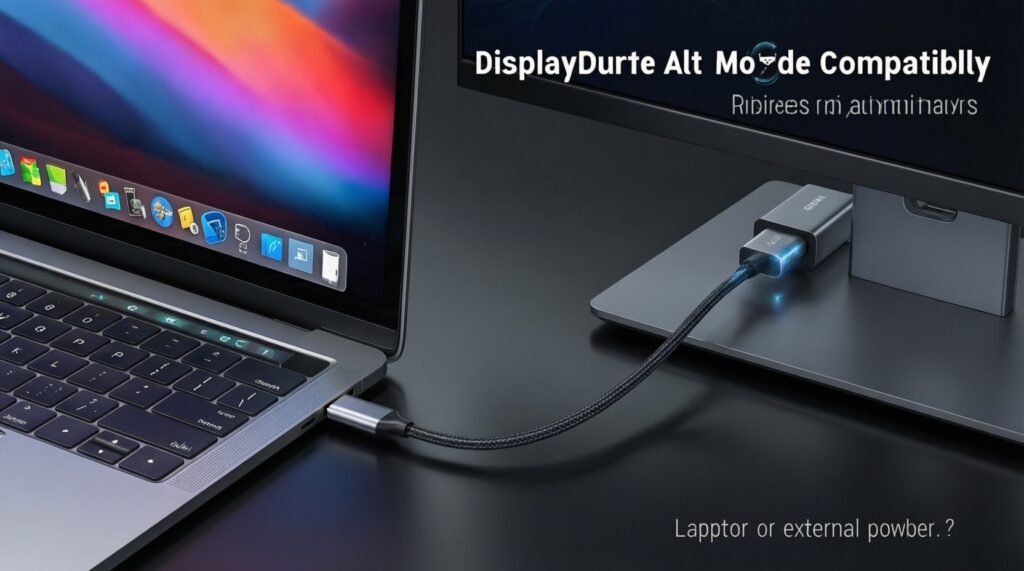
Confirm your device supports USB-C DisplayPort Alt Mode and that the monitor supports USB-C video input. Also plan whether the monitor is powered by the laptop or by an external adapter.
Will a "จอภาพพกพา HDR 4K" work with my phone or tablet?
Only if the device supports video-out (often USB-C DP Alt Mode) and the apps output the needed resolution/HDR mode. Many phones/tablets output limited modes even when they have USB-C.