
If your portable display on a Mac shows no signal, wrong colors, or flickering, treat it as a reproducible connection problem first: verify power delivery, video mode (Alt Mode vs HDMI), and macOS display settings using read-only checks and simple swaps. This checklist isolates whether the fault is the cable/adapter, macOS configuration, or the panel itself before you claim warranty.
Essential pre-claim diagnostics for Mac + portable display issues
- Confirm the display's input type: USB-C (DisplayPort Alt Mode) vs HDMI; most "no signal" cases are a mismatch.
- Swap one variable at a time (cable, port, adapter, power source) and note outcomes with photos.
- Run a macOS-only check: Detect Displays, refresh rate, color profile, and HDR/True Tone/Night Shift toggles.
- Prove the panel works with an alternate host (Windows laptop, iPad with USB-C, game console) before blaming macOS.
- Keep changes reversible; record every setting you touch so you can roll back before escalation.
Why portable displays fail with Macs: common causes
- No picture / "No Signal" / backlight only (typical for จอพกพา mac ไม่ติด แก้ไข cases).
- Image appears, then drops intermittently; the screen reconnects repeatedly.
- Flicker or pulsing brightness (often reported as จอพกพา mac กระพริบ แก้ไข).
- Wrong tint, washed-out blacks, oversaturation, or banding (common in จอพกพา mac สีเพี้ยน แก้ยังไง scenarios).
- Works at 1080p but fails at higher resolution/refresh rate, or only works with lid open/closed.
- USB devices on the display's hub disconnect, even if video is stable (power negotiation issue).
Cables, adapters and ports to test first
- Identify the required link: If the display expects USB-C DisplayPort Alt Mode, a USB-C "charging/data" cable may never output video.
Severity: Low. Rollback: Reconnect the original cable. - Use a known-good USB-C video cable: Prefer a short, reputable USB-C cable explicitly rated for video/DP Alt Mode.
Severity: Low. Rollback: None; keep the working cable. - Separate power from video: If the display supports it, power it from a wall charger while video uses USB-C/HDMI.
Severity: Low. Rollback: Return to single-cable mode. - Try another Mac port: Ports can negotiate differently under load; avoid hubs initially.
Severity: Low. Rollback: Move back to the preferred port after testing. - Remove the dock/hub: Connect the portable display directly to the MacBook to eliminate PD/video conversion issues.
Severity: Low. Rollback: Reinsert the hub after confirming the baseline. - Validate your adapter type: For HDMI displays, use a reputable อะแดปเตอร์ USB-C to HDMI สำหรับ macbook จอพกพา that supports the target resolution/refresh rate.
Severity: Low. Rollback: Revert to the previous adapter. - Prefer HDMI 2.x-rated cable for HDMI paths: Cheap HDMI cables can flicker at higher bandwidth.
Severity: Low. Rollback: Swap back. - Test with an alternate host: If the same cable+display fails on another device, suspect the display/cable. If it works, suspect macOS/adapter.
Severity: Low. Rollback: None. - Lock a conservative mode temporarily: Use 60 Hz and a standard resolution during testing to reduce bandwidth.
Severity: Low. Rollback: Restore your preferred resolution/refresh rate. - Check for "USB-C input mode" in the display OSD: Some portable panels let you switch between USB-C/HDMI sources manually.
Severity: Low. Rollback: Switch back to auto or the prior input.
macOS settings and firmware checks before escalating
Start with read-only observations (System Information, display detection, current refresh rate, and color profile) and change only one setting at a time. Keep a short note of the original values so you can revert.
| Symptom | Possible causes | How to verify (read-first) | How to fix (with severity + rollback) |
|---|---|---|---|
| No signal / black screen | Wrong input selected; non-video USB-C cable; hub not passing DP Alt Mode; insufficient power | Apple menu → System Settings → Displays (does it appear?); System Information → Graphics/Displays; check display OSD input/source | Set correct input source; connect directly; use a known video-capable USB-C cable. Severity: Low. Rollback: Restore original cable/connection chain. |
| Flicker / random disconnects | Bandwidth too high; unstable adapter; power negotiation issues; VRR/overdrive quirks on the panel | Observe if flicker correlates with high refresh rate or HDR; test direct connection vs hub | Set refresh to 60 Hz; disable HDR for the external display; power the display separately. Severity: Low-Medium. Rollback: Re-enable HDR/restore refresh rate after confirming stability. |
| Wrong colors / tint / washed out | Incorrect color profile; HDR mismatch; Night Shift/True Tone; limited-range vs full-range on HDMI path | System Settings → Displays → Color profile; check if Night Shift/True Tone is enabled; note HDR state | Select the correct profile; turn off Night Shift/True Tone for testing; toggle HDR off/on. Severity: Low. Rollback: Restore the original color profile and toggles. |
| Text is blurry / scaling feels off | Non-native scaling; wrong resolution; chroma subsampling on HDMI adapter | System Settings → Displays → Resolution/Scaling; compare "Default" vs "More Space" modes | Use native resolution; avoid low-quality HDMI adapters; prefer USB-C DP Alt Mode when available. Severity: Low. Rollback: Return to prior scaling option. |
| Display appears but keeps rearranging | Intermittent link; flaky cable; macOS re-detect loop | Watch whether the display disappears/reappears in Displays while moving the cable slightly (gentle only) | Replace the cable; avoid port strain; connect directly. Severity: Low. Rollback: Reconnect original cable if needed for comparison. |
| Works only after reconnect/reboot | Handshake timing; sleep/wake bug; dock firmware behavior | Test after cold boot vs wake from sleep; test without dock/hub | Disable "Put hard disks to sleep" temporarily; avoid dock for the portable display; reconnect once after wake as a workaround. Severity: Low. Rollback: Restore Energy/Sleep settings. |
Firmware and system-level checks (keep changes reversible)
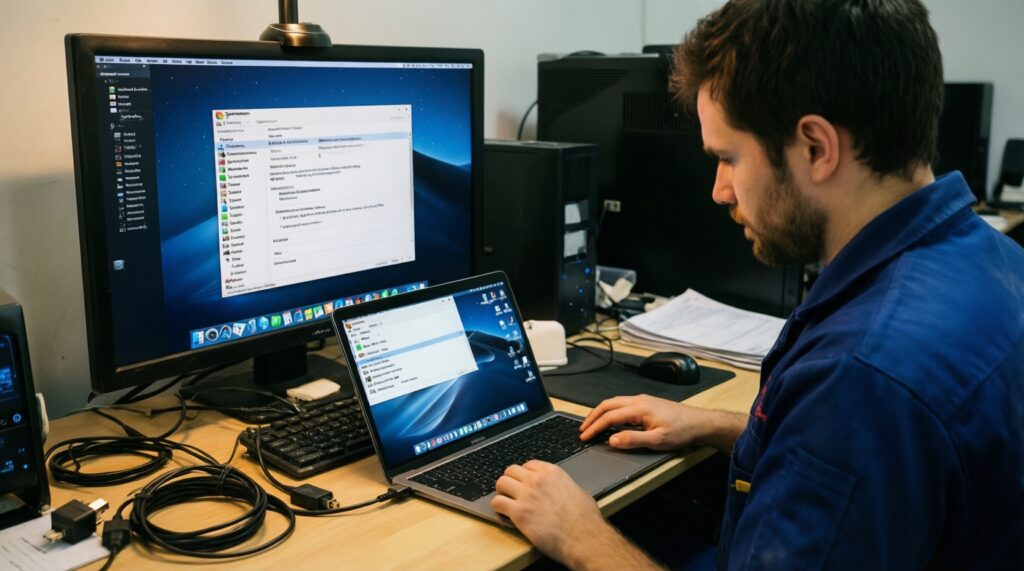
- Update macOS: Minor updates can improve external display handling.
Severity: Medium. Rollback: If an update correlates with failure, document build number and avoid further changes before support escalation (full rollback usually requires reinstall). - Check System Information: Confirm the external display is detected and note reported resolution/refresh.
Severity: Low. Rollback: None. - Safe Mode test (diagnostic only): Boot Safe Mode and see if the portable display behaves differently.
Severity: Low. Rollback: Reboot normally. - New user profile test: If colors/flicker differ, it points to per-user settings.
Severity: Low. Rollback: Delete the test user after documenting results.
Physical and electrical hardware inspections
- Inspect connectors and ports under good light: Look for lint, bent pins, or loose USB-C receptacles on both Mac and display.
Severity: Low. Rollback: None; do not scrape pins. - Relieve cable strain: Place the display so the cable is not pulling sideways on the port; avoid sharp bends near connectors.
Severity: Low. Rollback: Reposition back after the test. - Use a stable power source: If the portable display needs external power, use a wall charger rather than a power bank while testing.
Severity: Low. Rollback: Return to your normal power source. - Eliminate electromagnetic noise: Temporarily move away from cheap chargers, long unshielded cables, or tightly bundled power cords.
Severity: Low. Rollback: Put your setup back once confirmed. - Thermal check: If flicker starts only after warming up, note time-to-failure and surface temperature feel (no measuring required).
Severity: Low. Rollback: Let it cool; do not block vents. - Alternate input path: If the display has both USB-C and HDMI, test the other path to isolate controller vs panel issues.
Severity: Low. Rollback: Switch back to the original input. - Test with another cable/adapter set as a "known-good kit": Keep one validated combination for future troubleshooting.
Severity: Low. Rollback: None. - Avoid risky actions: Do not open the display enclosure, reflow boards, or "tighten" USB-C ports-these often void warranty and make evidence unreliable.
Severity: High (avoid). Rollback: Not applicable.
Step-by-step troubleshooting with rollback plan
- Baseline (read-only): Note macOS version, Mac model, display model, connection chain, and whether the display appears in System Settings → Displays.
Severity: Low. Rollback: None. - Connection swap test: Change only one element (cable OR adapter OR port), retest, and record.
Severity: Low. Rollback: Restore the previous element. - Direct connection baseline: Remove hubs/docks; connect the portable panel directly to the Mac.
Severity: Low. Rollback: Reconnect dock after results are documented. - Conservative video mode: Set 60 Hz, disable HDR for that display, and use native resolution.
Severity: Low. Rollback: Restore prior refresh/HDR/resolution values from your notes. - Alternate host proof: Confirm the display works (or fails) on a different device using the same cable/adapter when possible.
Severity: Low. Rollback: None. - Safe Mode differentiation: If behavior changes in Safe Mode, suspect software/settings rather than hardware.
Severity: Low. Rollback: Reboot normally. - Escalate when: the panel fails on multiple hosts; the port is physically loose; flicker persists with multiple cables/adapters and conservative settings; or the display never enumerates in macOS.
Severity: Medium. Rollback: Stop changing settings; preserve the last reproducible failing setup for service.
Rollback checklist before contacting support
- Restore the original resolution and refresh rate you had before testing.
- Return HDR, Night Shift, and True Tone to their previous states.
- Reconnect the original adapter/dock (only if it was part of your normal setup) and confirm the symptom still reproduces.
- Undo temporary accounts and remove any test-only display profiles you created.
- Keep one "known-good" cable/adapter aside for final confirmation at the service desk.
Preparing evidence and options for repair or replacement
- Capture proof: Photo/video of the symptom (black screen, flicker, color shift) plus the cable/adapter chain and the display's OSD input setting.
- Write a minimal repro script: "Connect via USB-C direct → set 60 Hz → flicker starts after X minutes" (use your real observation, no estimates).
- Document compatibility intent: If you plan to ซื้อจอพกพาใช้กับ macbook, prioritize models that explicitly state USB-C DP Alt Mode support (not only "USB-C").
- List what you ruled out: "Tried 2 cables, 2 ports, direct vs hub, alternate host" to speed up warranty approval.
- Keep packaging and serial identifiers: Service centers often request them; photograph labels early.
- Decide replacement criteria: Prefer direct USB-C DP Alt Mode over HDMI where possible; HDMI paths depend heavily on adapter quality.
- Protect ports long-term: Use a short extension/pigtail to reduce wear on Mac USB-C ports if you connect/disconnect daily.
- Avoid "fixes" that break warranty: No enclosure opening, no board-level work, no force-cleaning ports.
Common edge cases and concise resolutions
Why does the portable display show power but not appear in macOS Displays?
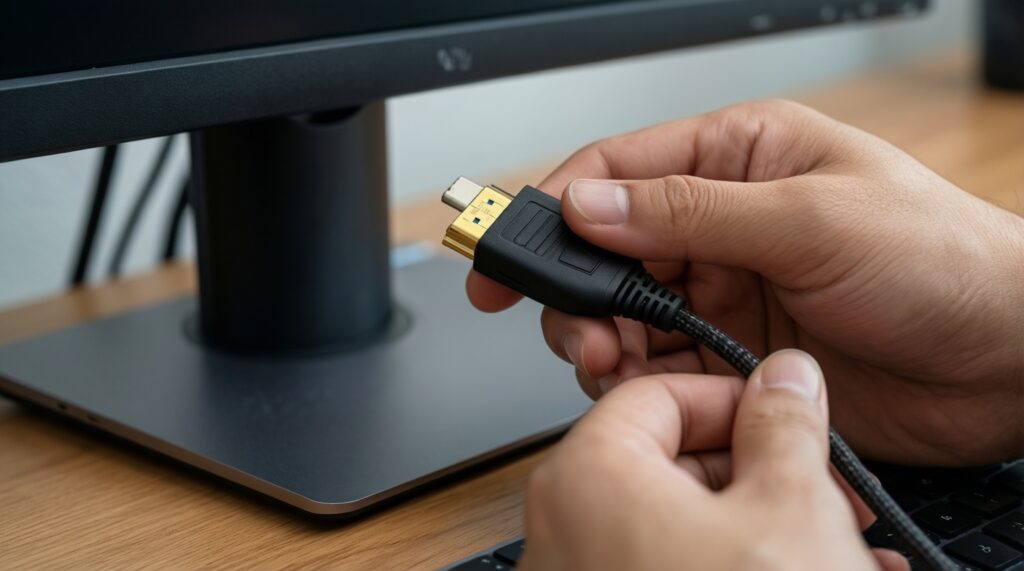
Assume a non-video USB-C cable or a hub that doesn't pass DP Alt Mode. Connect the display directly with a known video-capable USB-C cable; rollback by restoring your original connection chain after documenting the result.
Why are colors correct on Windows but wrong on my Mac?
Check macOS color profile, HDR, Night Shift, and True Tone. Fix by selecting the correct profile and disabling HDR/Night Shift for testing; rollback by re-enabling your previous settings.
Why does flicker happen only at higher refresh rates?
This is commonly bandwidth/adapter stability rather than a dead panel. Fix by locking to 60 Hz and native resolution; rollback by restoring your preferred refresh rate once stable.
Why does it work only when powered from a wall charger?
The Mac port may not be delivering enough stable power for that panel under load. Keep power separate (wall) and use USB-C/HDMI only for video; rollback by returning to one-cable mode if you must, noting the limitation.
Why does HDMI work but USB-C fail (or the reverse)?
You're testing two different pipelines (HDMI conversion vs DP Alt Mode). Use the working path for immediate use and service the failing path (cable/adapter/port) separately; rollback by switching back to the proven input.
Why does the display disconnect when I close the MacBook lid?
Clamshell mode can change power and display routing. Test with lid open, and ensure power adapter is connected if using clamshell; rollback by returning to your normal lid state.
Why does the display stay black after sleep until I replug it?
This is usually a handshake timing issue. Use direct connection and conservative settings; rollback is simply a normal reboot after you document the behavior for support.