
To avoid being misled by gadget specs, translate marketing labels into measurable units and verify them with simple checks: power banks by energy (Wh) and delivered charge, phone screens by actual pixel resolution and scaling behavior, and Bluetooth headphones by the codec negotiated during playback. You do not need lab gear-just the right settings, a couple of inexpensive tools, and consistent test steps.
Quick verification checklist for gadget specs
- Power bank: convert the printed capacity to energy (Wh) and compare it to what you can actually deliver at 5V.
- Power bank: confirm supported output modes (5V/9V/12V) and the maximum current per port, not only total wattage claims.
- Phone screen: verify the real render resolution in settings (and whether it is downscaled) before trusting "FHD+/2K/4K" labels.
- Phone screen: check refresh rate options and confirm the app/game can really run at that rate.
- Display: validate HDR support (content triggers it) and practical brightness behavior, not just a headline number.
- Headphones: confirm the active Bluetooth codec during playback (AAC/aptX/LDAC), not just "supported codecs" on the box.
- Use repeatable tests: same cable, same charger, same phone settings, and log results to spot inconsistencies.
Decoding power bank capacity: labeled mAh vs usable energy (Wh)
This check is most useful if you regularly buy power banks online, rely on them for travel, or want to compare different models fairly. It directly answers the common question "พาวเวอร์แบงก์ mAh จริง ดูยังไง" by shifting the comparison from a marketing mAh label to delivered energy.
Skip (or postpone) deep verification if you cannot keep conditions consistent (no stable cable, no time for a full discharge test) or if you must open the device-do not open or puncture a lithium pack to "confirm cells." If a seller forces you into unsafe steps, treat it as a red flag.
- Rule of thumb for interpretation: printed mAh is usually specified at the internal battery voltage, while your phone charges at 5V/9V-so "usable" at the USB port will be lower after voltage conversion and losses.
- What to compare instead: Wh (watt-hours) on the label, or your own measured Wh/charge delivered at the USB output.
Voltage, conversion and real-world losses: what reduces reported mAh
To do "วิธีเช็คพาวเวอร์แบงก์ของแท้ ความจุเต็ม" safely and repeatably, prepare a small kit and control variables.
- USB power meter (inline): shows V, A, and accumulated mAh/Wh during charging/discharging.
- Known-good cable (short, thick enough): reduces voltage drop; use the same cable for all tests.
- Constant load or USB load tester (optional but helpful): provides steady discharge so results are comparable.
- Your phone + a consistent charging profile: disable heavy background tasks for a cleaner run.
- Notes app: record start/end percentage, time, and measured Wh to catch anomalies.
Why mAh "shrinks" in real use:
- Voltage conversion: the pack is lower-voltage internally; stepping up to 5V/9V/12V costs energy.
- Heat and electronics overhead: boost circuits and protection add losses, especially at high current.
- Cable and connector drop: a bad cable can make the phone draw less or stop fast-charging.
- Phone-side behavior: charging slows near full, and some phones negotiate different voltages dynamically.
| Area | What marketing usually shows | What you should verify | How to measure/confirm | Units to record |
|---|---|---|---|---|
| Power bank | Capacity in mAh (big number) | Delivered energy at USB output (usable capacity) | Inline USB meter during a full discharge to a stable load | Wh (preferred), plus V/A profile |
| Phone display | "FHD+ / 2K / 4K" label | Actual render resolution + scaling mode + app output | Settings + developer overlay (if available) + test patterns | Pixels (e.g., 1080×2400), PPI (calculated) |
| Bluetooth audio | "Supports LDAC/aptX/AAC" | Codec actually negotiated during playback | Phone Bluetooth codec screen + status in player/OS (where available) | Codec name, sample rate (if shown) |
Screen resolution and perceived sharpness: pixels, PPI and viewing distance
This section targets "วิธีดูความละเอียดหน้าจอ มือถือ ก่อนซื้อ" and helps you interpret "ความละเอียดหน้าจอ FHD+ 2K 4K ต่างกันยังไง" without relying on vague product pages.
-
Find the device's active resolution setting
On many phones, the panel's native pixel count and the rendered (active) resolution can differ. Check Display settings for resolution options (often FHD+ vs QHD+), and note which mode is currently selected.
- If there is a "high resolution" toggle, confirm it stays enabled after reboot and battery saver changes.
-
Confirm whether the UI is being downscaled
Some devices render the interface at a lower resolution to save power, then upscale. Open a sharp text page and a fine grid/test image; downscaling often shows soft edges or uneven line thickness.
- Use the same brightness level and disable eye comfort/blue light filters for the check.
-
Calculate PPI using the real pixel dimensions and screen size
PPI (pixels per inch) is a better sharpness comparator than "2K/4K" labels. Use the phone's published pixel dimensions and diagonal size, then compute PPI with any calculator (or a trusted PPI tool).
- Record: width×height pixels and diagonal inches; keep them with your shopping notes.
-
Check app-level output (video and games)
Even with a high-res panel, an app may render below native resolution. In video apps, force the playback quality; in games, review graphics settings and look for a "render resolution" slider.
- For streaming, confirm the actual playback resolution indicator rather than "HD" badges.
-
Validate sharpness at your real viewing distance
Perceived sharpness depends on how close you hold the phone. Compare two devices using the same content, same font size, and the distance you normally use; avoid judging at unrealistically close distances.
Fast mode: 60-second screen spec verification
- Open Display settings and note the active resolution mode (FHD+/QHD+).
- Disable battery saver and eye comfort features temporarily.
- Open a fine text page and a grid/test image; look for softness/uneven line rendering.
- Force the highest video playback quality and re-check crispness on subtitles.
Panel characteristics that matter: refresh rate, HDR, brightness (nits) and color gamut
- Refresh rate: confirm the selectable modes (e.g., standard vs high) and whether it's fixed or adaptive.
- Refresh rate: test with a scrolling page and a supported app; some apps cap refresh rate regardless of settings.
- HDR: verify HDR actually engages using known HDR content; "HDR support" without triggering behavior is not useful.
- Brightness behavior: check readability in strong ambient light; auto-brightness should increase decisively outdoors.
- Color mode: compare Natural/Standard/Vivid profiles; a wide gamut mode is not automatically more accurate.
- Viewing angles: tilt the screen on a white/gray background to spot color shift and contrast loss.
- Uniformity: inspect a dark gray image for blotches, banding, or uneven corners at low brightness.
- Flicker: if you are sensitive, check for visible flicker at low brightness (avoid filming claims; rely on comfort and stability).
Headphone codecs explained: latency, bitrates and practical listening differences
The buying question "หูฟัง bluetooth codec aptX AAC LDAC เลือกซื้อ" is best answered by matching codec behavior to your phone and your use case (music, video, games, calls), not by chasing the longest codec list.
- Assuming "supported" means "active": many pairs fall back to SBC depending on phone, settings, or multipoint use.
- Ignoring phone ecosystem: some codecs are device-dependent; your headphones may support a codec your phone cannot transmit.
- Not checking playback mode: some headsets change codec/latency when you enable gaming/low-latency mode.
- Forgetting multipoint: connecting to two devices often forces more conservative codec choices.
- Judging sound only by codec: tuning, drivers, seal/fit, and EQ dominate perceived sound more than codec labels.
- Mixing priorities: lowest latency and highest "quality mode" can be mutually exclusive in real settings.
- Testing with unstable RF conditions: crowded areas can cause dropouts that look like "bad codec quality."
- Not verifying in the OS: if you never confirm the negotiated codec, you may compare products unfairly.
Hands-on tests and simple tools: how to verify mAh, screen fidelity and codec behavior
Use these alternatives depending on time, access, and risk tolerance.
-
Power bank: controlled discharge with an inline USB meter
Best when you need a repeatable "usable capacity" comparison. Discharge the power bank into a steady load and record accumulated Wh at the USB output; repeat once to confirm consistency. Recommended tool: inline USB power meter (supports Wh logging).
-
Phone screen: settings + test patterns (no special hardware)
Best for in-store checks. Use a browser-based test pattern (grid, text, gradients) and verify resolution mode, refresh rate options, and uniformity quickly. Recommended tool: a saved set of test images/web pages.
-
Bluetooth codec: confirm negotiated codec during active playback
Best before concluding that "LDAC/aptX sounds bad." Start playback, then check the phone's Bluetooth device details/developer audio codec view (where available) to confirm the active codec. Recommended tool: built-in OS Bluetooth/audio codec status screens.
-
Borrowed reference comparison
Best when you cannot measure directly. Compare against a known-good power bank, a known-sharp phone, or a trusted wired headphone baseline using the same content and volume levels.
Typical uncertainties when validating specs
Why does a 10,000 mAh power bank not fully charge a 5,000 mAh phone twice?
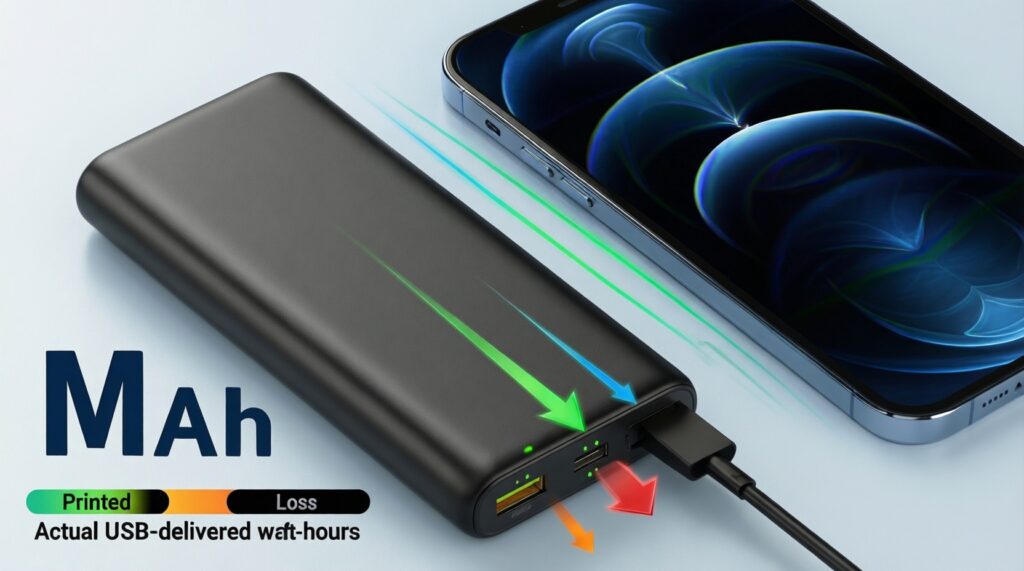
Power bank mAh is usually specified at the internal cell voltage, and energy is lost in voltage conversion, heat, and cable/charging overhead. Compare using Wh delivered at the USB output instead of the printed mAh.
Is "พาวเวอร์แบงก์ mAh จริง ดูยังไง" answered by looking at the sticker alone?
No. The sticker helps if it lists Wh and output profiles, but "real" for users is what it can deliver at 5V/9V under load. A USB power meter plus a consistent discharge test is the practical confirmation.
What is the safest "วิธีเช็คพาวเวอร์แบงก์ของแท้ ความจุเต็ม" at home?
Do not open the casing. Use an inline USB meter, a known cable, and a controlled discharge/charge run while monitoring temperature; stop if it becomes unusually hot, smells, or behaves erratically.
How do I do "วิธีดูความละเอียดหน้าจอ มือถือ ก่อนซื้อ" in a store quickly?
Check the phone's display resolution setting, then open a sharp text page and a grid image to spot downscaling softness. Also confirm the app/demo content is actually playing at the intended resolution.
"ความละเอียดหน้าจอ FHD+ 2K 4K ต่างกันยังไง" for daily use?
They mainly differ in pixel count and potential sharpness, but perceived improvement depends on PPI, viewing distance, and whether the phone/app renders at native resolution. Refresh rate, brightness, and panel quality can matter more than the label.
I bought headphones for LDAC/aptX, but my phone shows SBC/AAC-did I get scammed?
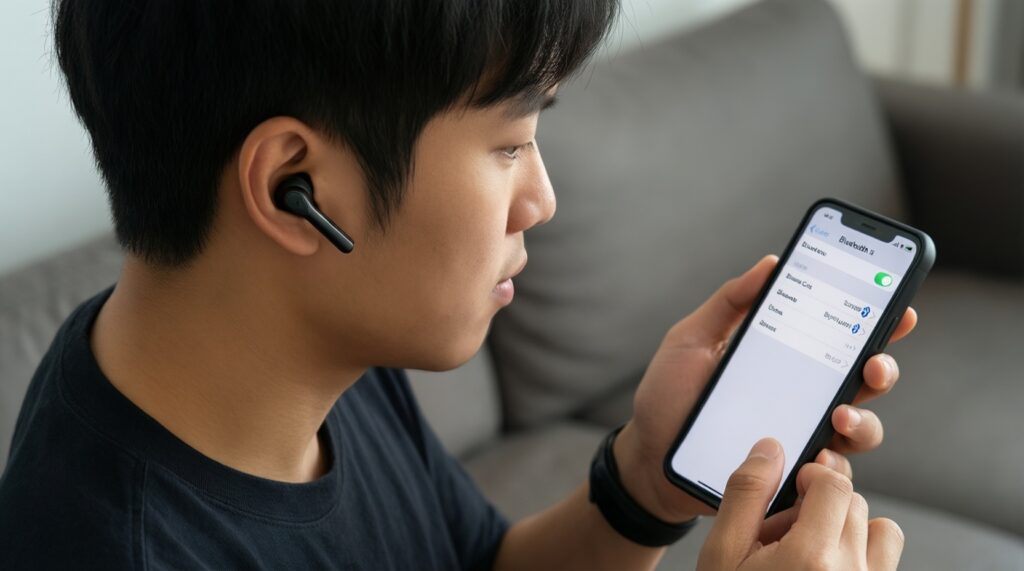
Not necessarily. The active codec depends on phone support, settings, multipoint connections, and stability requirements. Verify the negotiated codec during playback and disable multipoint/compatibility modes if you want to test the highest codec mode.
How should I decide "หูฟัง bluetooth codec aptX AAC LDAC เลือกซื้อ" if I watch videos and game?
Prioritize stable connection and low latency modes for video/gaming, then confirm the codec your phone can actually transmit. If calls matter, test mic quality and sidetone/processing, because codec labels do not guarantee call performance.