
To safely power a Mac and a portable monitor over USB‑C, you need the right combination of USB‑C Power Delivery (PD) wattage, a correctly rated cable (often with an E‑marker for higher power), and an adapter/hub that supports both PD pass‑through and the required video mode (usually USB‑C DisplayPort Alt Mode). Mismatches cause slow charging, flicker, or overheating.
Essential safety and compatibility highlights
- Match charger wattage to your Mac's typical needs; higher wattage is fine, but low wattage can cause slow charging or battery drain under load.
- For 60W+ charging, prefer a USB‑C cable explicitly rated for 5A (often marketed as 100W/240W) and supporting PD.
- For a portable monitor, verify the adapter/hub supports video (USB‑C DP Alt Mode or HDMI) and not just data + charging.
- Avoid no-name hubs that advertise "8K/100W" without clear specs; overheating and unstable display are common failure modes.
- Use a short, high-quality cable for video paths; long/cheap cables are a top cause of flicker and random disconnects.
- When shopping in Thailand, prioritize clear return/warranty terms; USB‑C issues are often only visible after real use.
Understand USB‑C Power Delivery: Wattage, Voltage, and Profiles
Verdict: Choose PD based on power profile compatibility, not marketing wattage alone; don't attempt "creative" cable/adapter stacking when powering both a Mac and a portable monitor.
- Wattage basics: PD power is negotiated (e.g., 20V × 3A ≈ 60W). If the charger/cable/adapter can't negotiate the needed profile, charging falls back to lower power.
- When it's suitable: USB‑C PD is the correct approach for MacBook Air/Pro, iPad-as-monitor setups, and most USB‑C portable monitors that accept PD input.
- When not to do it: Don't rely on a single-port charger with marginal wattage to power a Mac under heavy load and a monitor through the same hub; instability and heat rise fast.
- Practical Thailand shopping intent: If you're comparing สายชาร์จ USB-C สำหรับ Mac ราคา, treat unusually low prices as a risk signal unless specs and warranty are clear.
Cable Anatomy: E‑marker, AWG, Shielding and What Matters for Macs
Verdict: For dependable Mac charging and portable monitor video, cable spec clarity matters more than brand name.
- E‑marker (electronically marked cable): Commonly required for 5A cables (often sold as "PD 100W/240W"). If you want a สาย USB-C รองรับ PD 100W สำหรับ MacBook, look for explicit 5A/100W (or higher) rating and PD support.
- Wire gauge (AWG) and heat: Thicker power conductors (lower AWG number) generally reduce voltage drop and heat at higher current.
- Shielding for stable video: For portable monitor connections, pick a cable that explicitly supports USB‑C video (DP Alt Mode/USB4/TB). "Charging-only" or "USB 2.0" cables often fail for displays.
- What you may need (tools):
- A USB‑C power meter (in-line) to confirm negotiated voltage/current.
- Optionally, a known-good reference cable (short, certified) for A/B testing.
- If using HDMI, a hub/adapter that states resolution/refresh support clearly.
| Item type | Spec to look for | Best for | Common symptom if wrong |
|---|---|---|---|
| Charging cable (USB‑C to USB‑C) | PD rated; ideally 5A (often marketed as 100W/240W); E‑marker for higher current | Mac charging at higher load; stable fast charging | Slow charging, "Not Charging", warm connectors |
| Video-capable USB‑C cable | Explicit USB‑C DP Alt Mode / USB4 / Thunderbolt support | Portable monitor over USB‑C (single cable video/power where supported) | No signal, flicker, random disconnects |
| PD pass‑through hub | PD pass‑through wattage stated; thermal design; clear port mapping | One charger powering Mac + peripherals (sometimes monitor) | Charging drops under load, hub overheats |
| USB‑C to HDMI adapter | Resolution/refresh support stated; HDCP behavior if relevant | Portable monitor via HDMI input | Wrong refresh rate, black screen, intermittent signal |
Adapters and Hubs: Choosing Safe PD Pass‑Through and Video Support for Portable Monitors
Verdict: Pick the connection method first (USB‑C video vs HDMI), then choose a hub/adapter with the minimum required ports and clearly stated PD pass‑through.
-
Decide your monitor connection path (USB‑C video or HDMI)
Check your portable monitor specs: "USB‑C DP Alt Mode" means it can take video over USB‑C; otherwise use HDMI. If you're searching อะแดปเตอร์ USB-C ต่อจอพกพา ซื้อ, prioritize adapters that explicitly mention DP Alt Mode support (for USB‑C monitors) or HDMI version/resolution (for HDMI monitors).
-
Choose a charger with enough headroom for Mac + hub
Use a charger rated at or above your Mac's typical adapter wattage; hubs consume a little power too. If your intent is ที่ชาร์จ USB-C MacBook 65W ซื้อที่ไหน, buy from reputable Thai retailers with clear warranty/return policy and published safety markings.
-
Select the cable(s) by function: charging vs video
Use a PD-rated cable for charging, and a video-capable USB‑C cable for displays. Don't assume any USB‑C cable works for monitors.
- For higher power charging, choose a cable marketed as PD 100W+ (5A) if your setup can draw that much.
- Keep the monitor cable short and high quality to reduce signal loss.
-
Pick a hub/adapter with explicit PD pass‑through and port capabilities
Look for a stated PD pass‑through rating and clear claims like "USB‑C video/DP Alt Mode" or "HDMI 4K60" (as appropriate). If you're comparing อะแดปเตอร์ USB-C สำหรับ Mac แท้, note that "genuine" matters less than transparent specs, compliance, and warranty.
-
Connect in a stable order and validate negotiation
Connect charger → hub (PD-in) → Mac first, confirm charging, then attach the monitor. Validate with a USB‑C power meter if you see slow charging or disconnects.
Быстрый режим
- Confirm the monitor input type: USB‑C DP Alt Mode or HDMI.
- Use a charger with enough wattage headroom for your Mac; avoid borderline adapters.
- Use a 5A PD-rated cable for charging; use a separate video-capable USB‑C cable (or HDMI) for the display.
- Pick a hub/adapter with explicitly stated PD pass‑through and video support.
- If anything is unstable, test with a shorter/better cable first, then remove the hub and test direct connections.
Real‑world Compatibility: Mac Models, macOS Limits and Monitor Requirements
Verdict: Most "it should work" setups fail because the monitor needs DP Alt Mode (not just USB‑C), or because the Mac is limited in external display support.
- Verify your Mac's external display support (some Apple silicon base models have limits on number of external displays).
- Confirm the portable monitor supports the input you plan to use: USB‑C video (DP Alt Mode) and/or HDMI.
- Ensure the hub's USB‑C port is video-capable; many hubs have USB‑C ports that are data-only.
- Confirm PD pass‑through rating is sufficient for your Mac usage (light office vs heavy compile/render).
- Check for stable refresh rate/resolution in macOS Display settings; flicker often indicates cable/adapter signal issues.
- If using one-cable USB‑C to the monitor, confirm the monitor can accept power and video over the same port (not all models can).
- Use a known-good cable to isolate whether failures are cable-related or hub-related.
- Re-test with direct connection (Mac → monitor) before blaming macOS.
Testing and Verifying: How to Measure Voltage, Current and Identify Faulty Cables
Verdict: Measure negotiation and simplify the chain; most failures are caused by one weak link (cable or hub) rather than the Mac itself.
- Assuming "100W" branding guarantees performance: Some cables are mislabeled; verify with a USB‑C power meter under load.
- Using a charging-only USB‑C cable for a monitor: If the monitor shows "No signal," swap to a known video-capable cable.
- Stacking adapters: USB‑C → hub → USB‑C → adapter chains often break DP Alt Mode or reduce stability.
- Ignoring heat: If a hub gets hot to the touch during normal use, stop and replace it; heat correlates with voltage drop and instability.
- Wrong port selection on the hub: Many hubs have one PD-in port (charger only) and a separate USB‑C data port-plugging the monitor into the wrong one fails.
- Not testing direct: Always test (1) Mac → charger, (2) Mac → monitor direct, then (3) Mac → hub → monitor to isolate the culprit.
- Troubleshooting flow (fast): If charging is slow, remove the hub; if it improves, the hub is limiting PD. If display flickers, shorten/upgrade the video cable; if it persists, switch output type (USB‑C video ↔ HDMI) with a different adapter.
Buying and Maintenance Checklist: Trusted Brands, Certifications and Longevity Tips
Verdict: Buy fewer, better parts; maintain connectors and avoid cable strain to prevent intermittent failures that look like "Mac issues."
- Option A: Separate charger + direct USB‑C video cable (most reliable)
Best when your monitor supports USB‑C DP Alt Mode and you can dedicate ports. This reduces complexity and hub heat. - Option B: Charger + compact hub with PD pass‑through + HDMI
Best when the monitor is HDMI-only or USB‑C video is unstable. Choose a hub with clearly stated HDMI capability and PD pass‑through. - Option C: Higher-rated single charger + two quality cables (charging + video)
Best when you want simplicity but still need stability; avoids overloading a small hub. This is also the safest path if you specifically want a สาย USB-C รองรับ PD 100W สำหรับ MacBook for future-proofing. - Option D: Replace-only-what-fails strategy
If budget is tight and you're comparing สายชาร์จ USB-C สำหรับ Mac ราคา, keep one known-good "reference" cable/adapter and replace the weakest link first (often the cable), not everything at once.
- Inspect USB‑C plugs for looseness; replace cables that wiggle or intermittently disconnect.
- Keep ports clean and dry; avoid charging in humid environments without airflow.
- Don't bend cables tightly near the connector; use gentle loops and strain relief.
- Prefer sellers with easy returns in Thailand; compatibility issues can be device-specific.
Common practical concerns and quick fixes
Can I use a higher-wattage USB‑C charger than my Mac originally came with?
Yes. USB‑C PD negotiates power, so the Mac draws what it needs; the key is using a quality charger and cable rated for the expected load.
Why does my Mac say "Not Charging" when connected through a hub?
The hub may limit PD pass‑through or overheat and throttle. Test direct charging first, then try a higher-rated charger or a hub with clearly stated PD pass‑through.
My portable monitor works on HDMI but not over USB‑C-what's the likely reason?
The cable or hub may not support DP Alt Mode, or you're using a USB‑C port that's data-only. Use a known video-capable USB‑C cable and connect Mac → monitor directly to confirm.
Do I really need an E‑marked cable for MacBook charging?
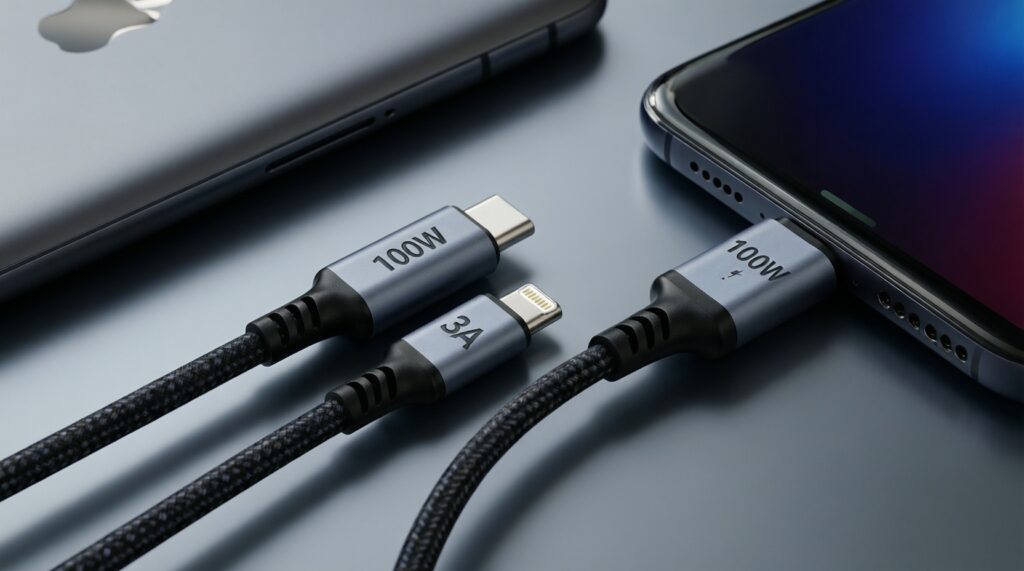
For higher current (commonly 5A cables marketed as 100W/240W), E‑marker support is typical and helps proper negotiation. For lower-power use, a quality 3A PD cable may be sufficient.
What should I check before buying an adapter in Thailand?
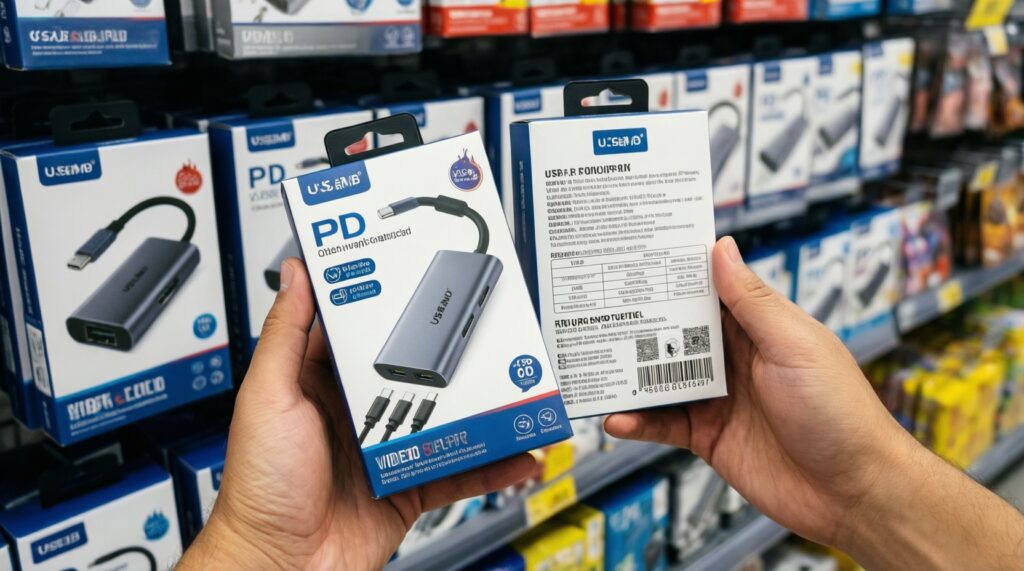
Look for explicit PD pass‑through rating, explicit video support (DP Alt Mode or HDMI specs), and a return policy. This matters more than vague "for Mac" marketing.
How can I quickly tell if the cable is the problem?
Swap only the cable with a known-good short cable and retest. If the issue disappears, the original cable is the likely fault; if not, suspect the hub/adapter or monitor input mode.