
If you want the best budget-first portable monitor for a MacBook, a good 2K panel is usually the smarter buy for coding and documents, while 4K pays off mainly for image work where you can verify fine detail and scaling. Choose based on macOS scaling comfort, connectivity, and battery impact-not pixels alone.
Verdict at a glance: 4K or 2K for a MacBook (budget-first)
- For coding/documents: prioritize a solid 2K panel with reliable USB-C, stable brightness, and comfortable scaling; it's typically the best value.
- For image work: 4K helps with micro-detail and cleaner downscaling, but only if the panel is consistent and you can calibrate or at least profile it.
- macOS scaling matters more than "raw resolution": a sharp-but-uncomfortable scale is a productivity tax.
- If you're searching "จอพกพา 2K สำหรับ MacBook ราคา" vs "จอพกพา 4K สำหรับ MacBook ราคา", treat 4K as a "pay for detail" upgrade, not a default.
- USB-C implementation quality (power delivery, video mode stability) often separates a smooth experience from random disconnects.
- Budget-first rule: spend on panel quality and ports before chasing HDR badges or ultra-high refresh.
Resolution fundamentals: how 4K and 2K map to MacBook Retina scaling
Portable 15.6-16-inch monitors commonly ship as 4K (3840×2160) or "2K/QHD" (2560×1440). On macOS, you rarely run at native UI size; you run a scaled mode. Use these criteria to pick the resolution that will feel "Retina-like" without stressing your workflow.
- Comfortable macOS scaling: check whether "Looks like 1920×1080" (on 4K) or "Looks like 1440×900 / 1680×1050" (varies) gives you readable UI without constant zooming.
- Text rendering at your typical distance: if you sit close (laptop posture), higher pixel density reduces shimmer and fringe on thin fonts.
- Workspace density: decide if you need more columns/panes (coding) or more visible canvas/tools (design).
- GPU overhead: some scaled modes on 4K can be heavier than native 2K, especially with multiple external displays.
- Battery draw when powered from the MacBook: higher brightness + higher resolution can increase drain; plan for pass-through PD or a separate power source.
- Panel uniformity: uneven brightness/temperature is more damaging to photo work than having "only 2K".
- Surface finish (matte vs glossy): matte can help in cafés/co-working; glossy can look punchier but reflects.
- Native aspect ratio and size: most are 16:9; consider whether 16:10 (if available) matters for documents and IDE vertical space.
- Checklist: pick your target UI size (scaled), confirm you can read menus at your usual distance, confirm the monitor can run at its intended refresh rate over USB-C without flicker.
Example setup: MacBook Air/Pro → USB-C (DP Alt Mode) → 16-inch 2K portable at comfortable scaling for all-day coding; switch to a 4K portable only when doing image review or detailed retouching.
Image work assessment: color accuracy, sharpness, and calibration needs
For "จอพกพาสำหรับ MacBook งานกราฟิก สีตรง (4K)", resolution is only half the story. A mediocre 4K panel can still mislead you on skin tones or gradients. Treat 4K as useful when you also have decent color behavior and you can at least profile the display.
| Variant | Who it fits | Pros | Cons | When to choose |
|---|---|---|---|---|
| Budget 2K portable (basic IPS) | General creatives, social content, light photo edits | Good value; easier performance; often simpler scaling for mixed tasks | Less micro-detail; panel uniformity can vary unit-to-unit | If you mostly edit for web and need cost control first |
| Mid 2K portable (better IPS, stable brightness) | Designers who need consistent previews more than pixel-peeping | Usually better uniformity/black handling than the cheapest tier; still efficient | Still not ideal for fine retouch checks at 1:1 compared to 4K | If you want the "safe" pick for mixed image + office work |
| Budget 4K portable (entry-level 4K IPS) | Photographers who want detail on the go but accept compromises | Very sharp; better for checking focus and small artifacts | Higher chance of uneven backlight/temperature; more battery impact | If you specifically need 4K detail and can return/exchange a bad unit |
| Mid 4K portable (more consistent panel + better factory tuning) | Frequent image reviewers, client previews, on-site work | Sharpness plus more dependable color behavior; better gradients | Costs more; still limited by portable form-factor brightness and power | If image work is regular and you want fewer "panel lottery" surprises |
| 4K portable + calibration workflow (hardware or profiling) | Serious photo/video work where "close enough" is not enough | Most predictable results across devices; reduces guesswork | Extra cost/effort; portable brightness can drift with battery/heat | If you deliver color-critical outputs and repeatability matters |
| 2K portable + external reference later | Creators who edit on the road and finalize on a main monitor | Cheapest reliable mobile workflow; fewer power/scaling issues | Not ideal for final color calls while traveling | If you only need a competent "field monitor" for composition and rough edits |
- Checklist: prefer an IPS panel, verify it supports your required color mode in macOS, avoid relying on "HDR" labels, and plan a basic profiling step for repeatable edits.
Example setup: 4K portable for on-location photo selection (sharpness/focus checks), then final grading on a calibrated desktop display at home; if budget is tight, use a mid 2K portable for field edits and defer final color decisions.
Coding ergonomics: font clarity, window density, and optimal scaling
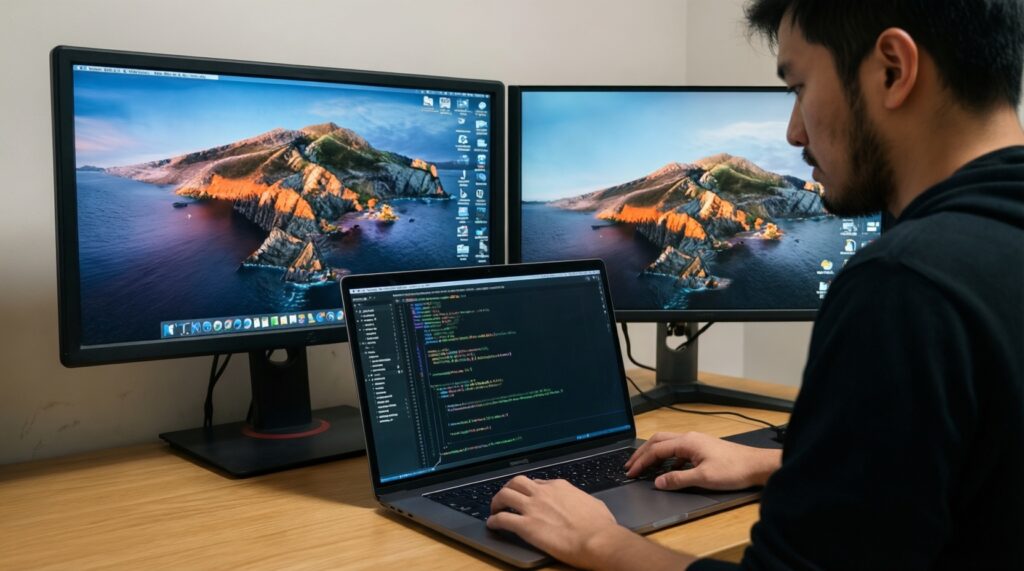
Coding comfort is about readable fonts, stable scaling, and how many panes you can keep open. For "เปรียบเทียบจอพกพา 4K vs 2K สำหรับ MacBook", 2K is often the better "hours-per-day" choice because you can run a comfortable UI size without heavy scaling overhead.
- If you code 6-10 hours/day and want fewer eye-fatigue triggers, then pick a good 2K panel and run a slightly larger scaling setting; budget-first guidance: buy 2K, skip 4K unless you also do frequent image review.
- If you use small fonts, multiple editor panes, and side-by-side terminals, then 4K can help keep text crisp at a denser layout; premium guidance: choose 4K only if you're happy with macOS scaling and your USB-C connection is rock-solid.
- If you frequently screen-share, then 2K is usually easier for others to read at default share settings; 4K screen sharing can look tiny unless you adjust zoom.
- If you develop on battery in cafés, then 2K typically gives longer runtime (less GPU and brightness pressure); for 4K, plan PD pass-through or a wall adapter.
- If you're sensitive to text fringing, then prioritize panel quality and scaling comfort; 4K helps, but a better 2K IPS can still beat a poor 4K unit.
- Checklist: test your IDE at your real font size, check whether macOS "Default for display" feels right, and verify the monitor stays stable at your preferred refresh rate over one cable.
Example setup: MacBook + 2K portable in landscape for IDE/terminal, MacBook screen for docs/chat; if you go 4K, use a scaling mode that keeps menus readable and avoid ultra-tiny UI.
Document editing and multitasking: usable workspace versus performance
For documents, spreadsheets, and general multitasking, you want predictable scaling and enough space for two full pages or a spreadsheet + email without lag. Use this quick pick algorithm.
- Decide your default layout: single app full-screen, split view (50/50), or 3-pane (doc + browser + chat).
- Set your "must-read" text size (e.g., comfortable paragraph size without zooming) and treat that as fixed.
- Check if 2K at your preferred scaling gives enough width for your split view; if yes, stop and buy 2K.
- If you still need more usable space at the same text size, move up to 4K and test scaled modes for readability.
- Confirm your MacBook can drive the display without constant fan ramping (or throttling on Air) in your real app mix.
- Validate travel practicality: cable simplicity, stand angle, and whether you can power it reliably.
Example setup: 2K portable for two-document review (PDF + Word/Google Docs) with comfortable scaling; choose 4K only if you routinely keep three columns visible without shrinking text.
Connectivity and system fit: ports, refresh rates, GPU load on macOS
If your goal is "ซื้อจอพกพา USB-C สำหรับ MacBook", connectivity details can matter more than resolution. These are the mistakes that cause most real-world pain.
- Assuming every USB-C port does video: you need DisplayPort Alt Mode (or Thunderbolt); some monitors/hosts require specific ports/cables.
- Using a charge-only USB-C cable: many included cables are not full-featured; a poor cable can cause flicker, black screens, or forced low refresh.
- Relying on "one-cable" without checking power budget: the MacBook may not supply enough power at high brightness; expect dimming or disconnects.
- Ignoring PD pass-through limits: a monitor may accept PD input but provide limited output to the MacBook, affecting charging under load.
- Expecting high refresh over every mode: some ports support only certain refresh rates at certain resolutions; you might end up capped unexpectedly.
- Choosing 4K and then running heavy scaled modes with multiple displays: this can increase GPU load and reduce smoothness in Mission Control, scrolling, or video calls.
- Not checking macOS color profile behavior: switching between clamshell/laptop mode and external displays can change perceived gamma/white point if profiles aren't managed.
- Overvaluing speaker/touch add-ons: portable monitor speakers are rarely decisive; prioritize panel + ports + stability first.
Example setup: One verified full-feature USB-C cable from MacBook to monitor for video + power; add a PD charger into the monitor only if pass-through keeps the MacBook charging during your typical workload.
Cost-conscious recommendations: value-per-pixel, weight, and battery impact
Best budget-first for most people (coding + documents) is a well-reviewed 2K portable with dependable USB-C video and stable brightness; best for frequent image review is a mid-tier 4K portable where you can trust uniformity and run a consistent macOS profile; best travel-light option is whichever panel you can power reliably from your MacBook without forcing dim brightness or constant reconnects.
Answers to common buyer concerns about portable 4K/2K monitors
Is 4K always sharper on macOS, or does scaling cancel it out?
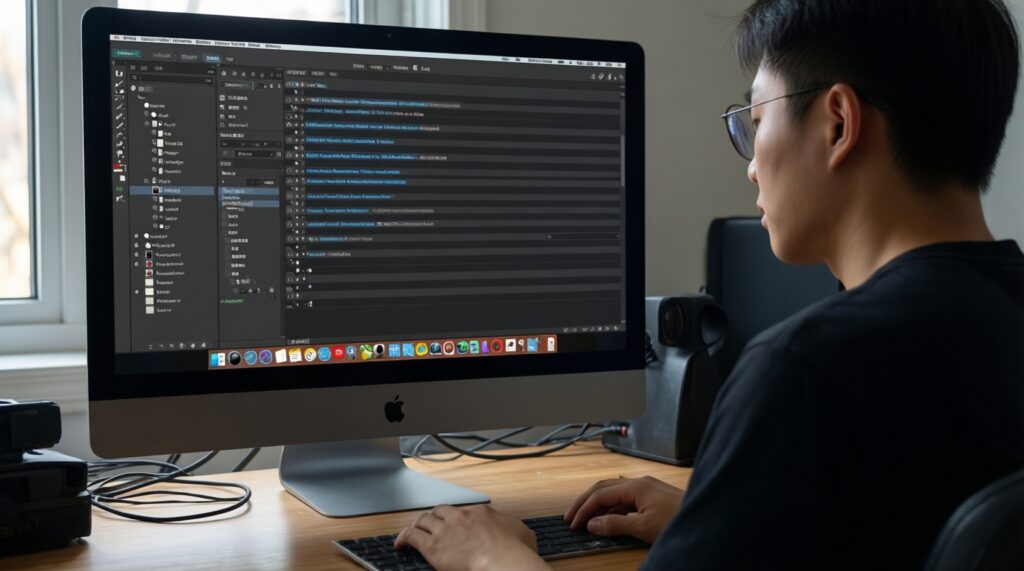
4K still helps because macOS can render UI at a higher internal resolution and downscale, but the benefit depends on the scaling mode and viewing distance. If you must scale UI up a lot, the perceived gain may be smaller than expected.
What's the safest choice if I compare "จอพกพา 4K สำหรับ MacBook ราคา" and feel unsure?
If your work is mostly code, docs, and calls, choose a solid 2K model and invest in a good cable and stand. Move to 4K only when your workflow clearly benefits from detail checks.
Will a 2K portable be enough for Photoshop/Lightroom on the go?
Yes for composition, basic edits, and web output. For critical retouching and fine texture evaluation, 4K is more comfortable-assuming the panel is consistent.
Do I need a calibrator for "จอพกพาสำหรับ MacBook งานกราฟิก สีตรง (4K)"?
You don't strictly need one, but profiling/calibration improves repeatability and reduces surprises between devices. Without it, treat the portable monitor as a preview tool rather than a final reference.
Is it better to buy 4K for future-proofing?
Only if you already know you'll use the extra detail or workspace at readable scaling. Otherwise, a better-quality 2K monitor can age better than a mediocre 4K panel.
What's the most common reason a USB-C portable monitor fails with a MacBook?
It's usually cable/port mismatch: a charge-only cable, a flaky USB-C implementation, or insufficient power budget. Start troubleshooting by swapping to a known full-feature USB-C cable and stable power source.
How should I phrase my decision when I "เปรียบเทียบจอพกพา 4K vs 2K สำหรับ MacBook" for mixed work?
Pick 2K if you optimize for comfort and value across long sessions; pick 4K if image detail verification is a weekly requirement and you accept higher cost and power needs.